This solution worked fine for test and demonstration purposes, but it was not very viable in the long run as I experienced on several occasions that [A] the signals not always got through and [B] the device occasionally became inoperable through the Linux kernel, forcing me to physically remove and re-insert the tranceiver in the computer to get it working again.
A friend of mine demonstrated to me how he operated his garage door using a Raspberry PI and a relay – and that inspired me to work on this idea.
Introducing Garman 2000
My end goal here was to control the garage door from my cell phone, so I needed an Android application (which I ended up developing myself) called “Garage Manager 2000”, shortened to “Garman2000”.
As I’m a native Norwegian speaker, the prototype was of course made in said language. Here’s a crash course for you English speakers:
Åpne/Lukke = Open/Close
Åpen = Open
Lukket = Closed
The LED icons left to the status descriptors, “åpen/lukket”, shows the current state of the garage. Yellow means “undefined”, grey means “off” and green means “on”.
On the top left screenshot, the garage is neither open nor closed, on the top right, feedback from the sensors in the garage indicates that the garage door is closed.
The app communicates with a REST compliant Garman 2000 server, programmed in Python using the Flask framework.
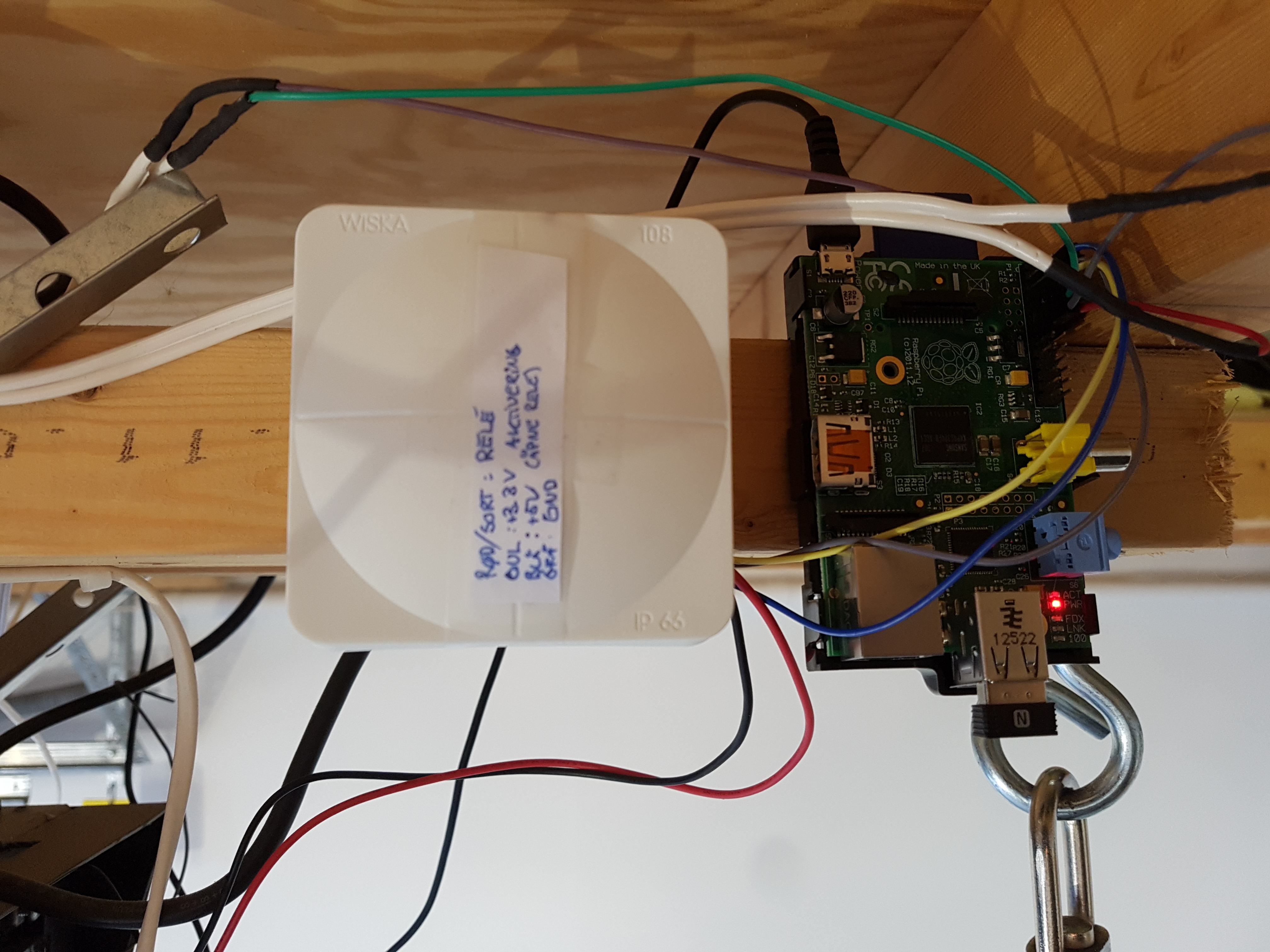
The server application is run on a Raspberry Pi Model B and communicates with the world through a small WiFi dongle plugged into the USB slot.
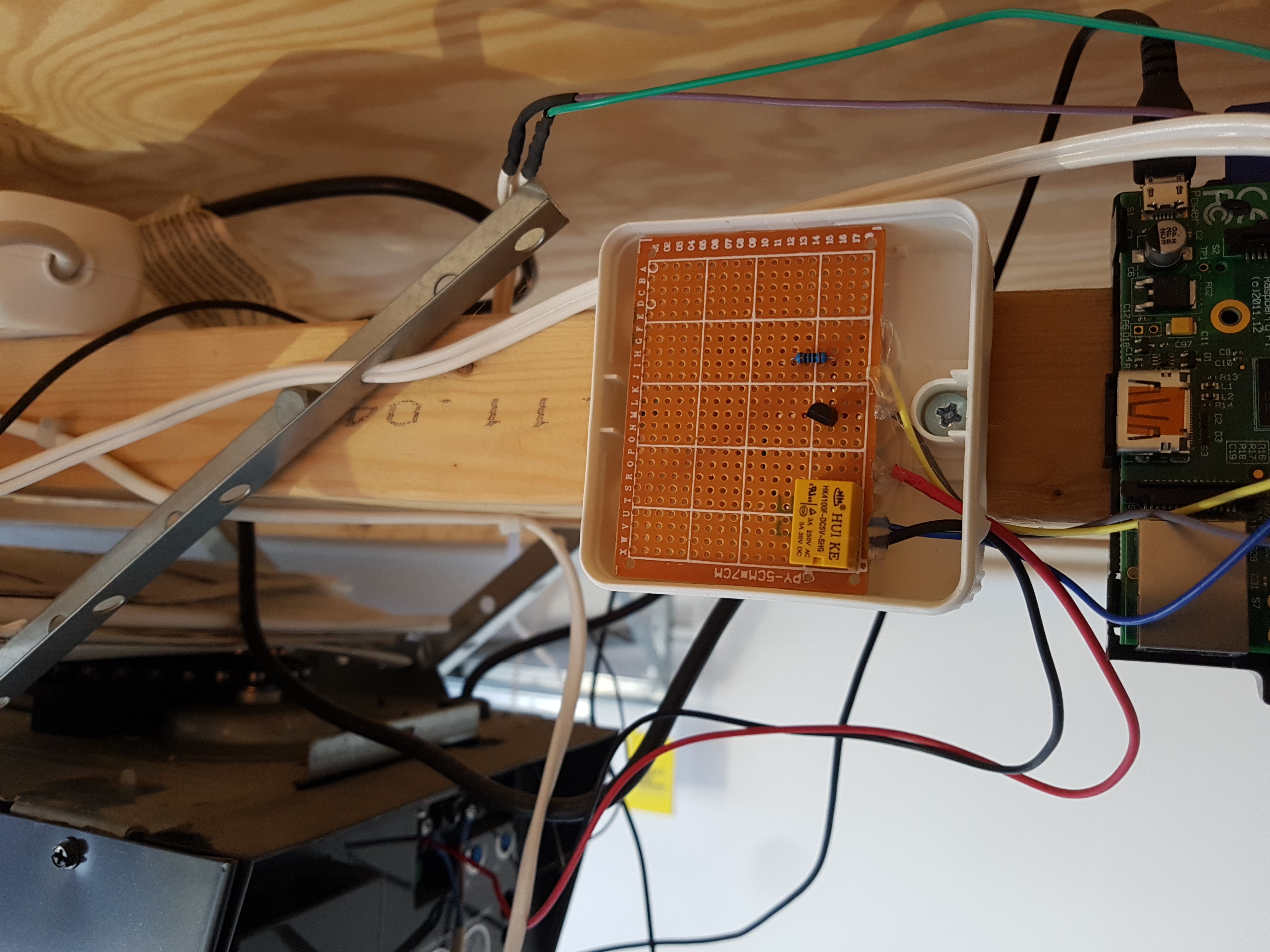
Initially, it was developed without any feedback from the garage. The garage door opened whenever two contact points were short circuited, so a relay was perfectly suited for that task! The relay I ended up using required 5V to activate. As the GPIO pins on the Raspberry only carries 3.3V, I used a transistor to send 5V to the relay using a 3.3V output pin to activate it.
Once I got that working, I figured I needed a way to read feedback from the garage door itself. In the end, my desire was to open/close the garage door from the cell phone, and if you are not in physical proximity of the garage door, you do really not know whether it is open or closed (before you have Garman 2000).
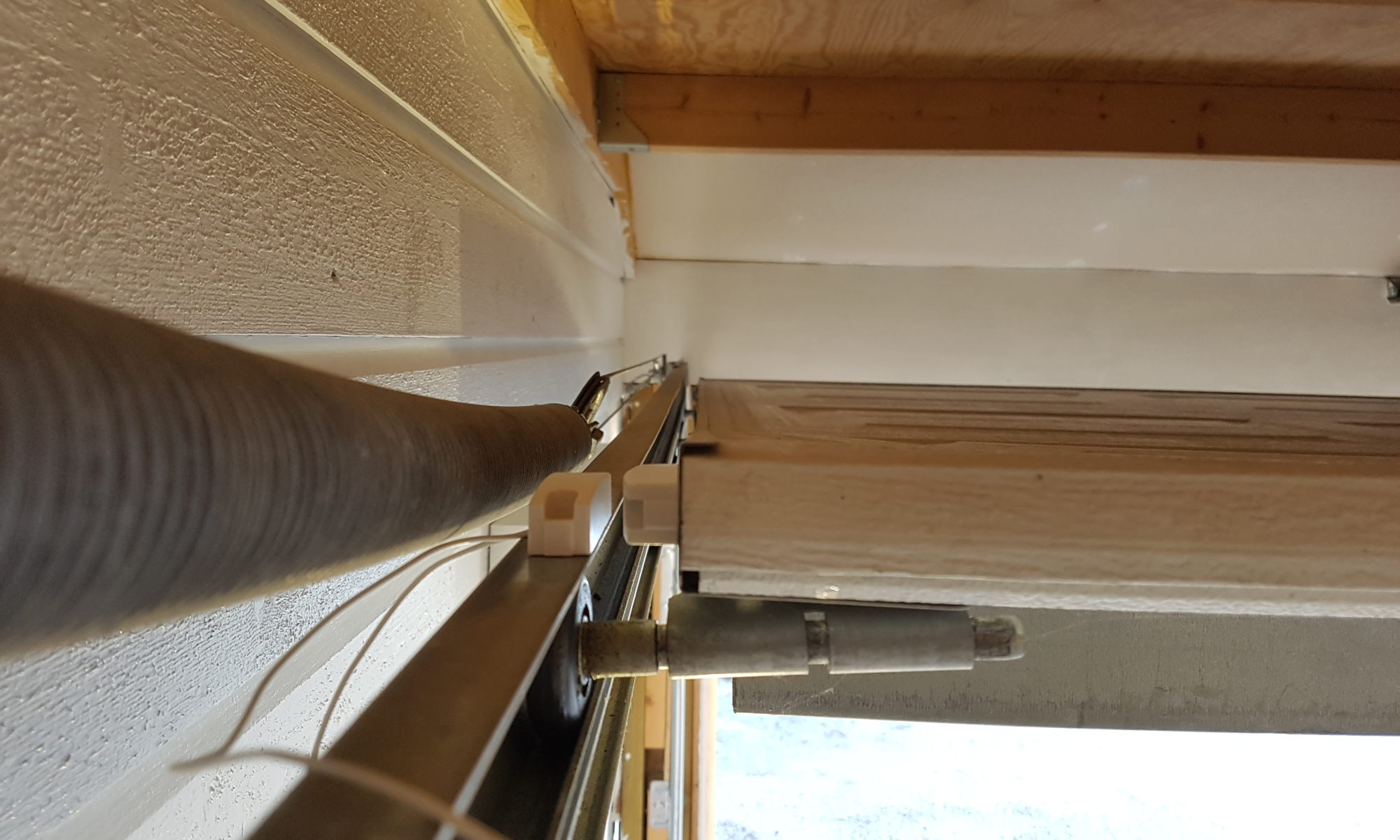
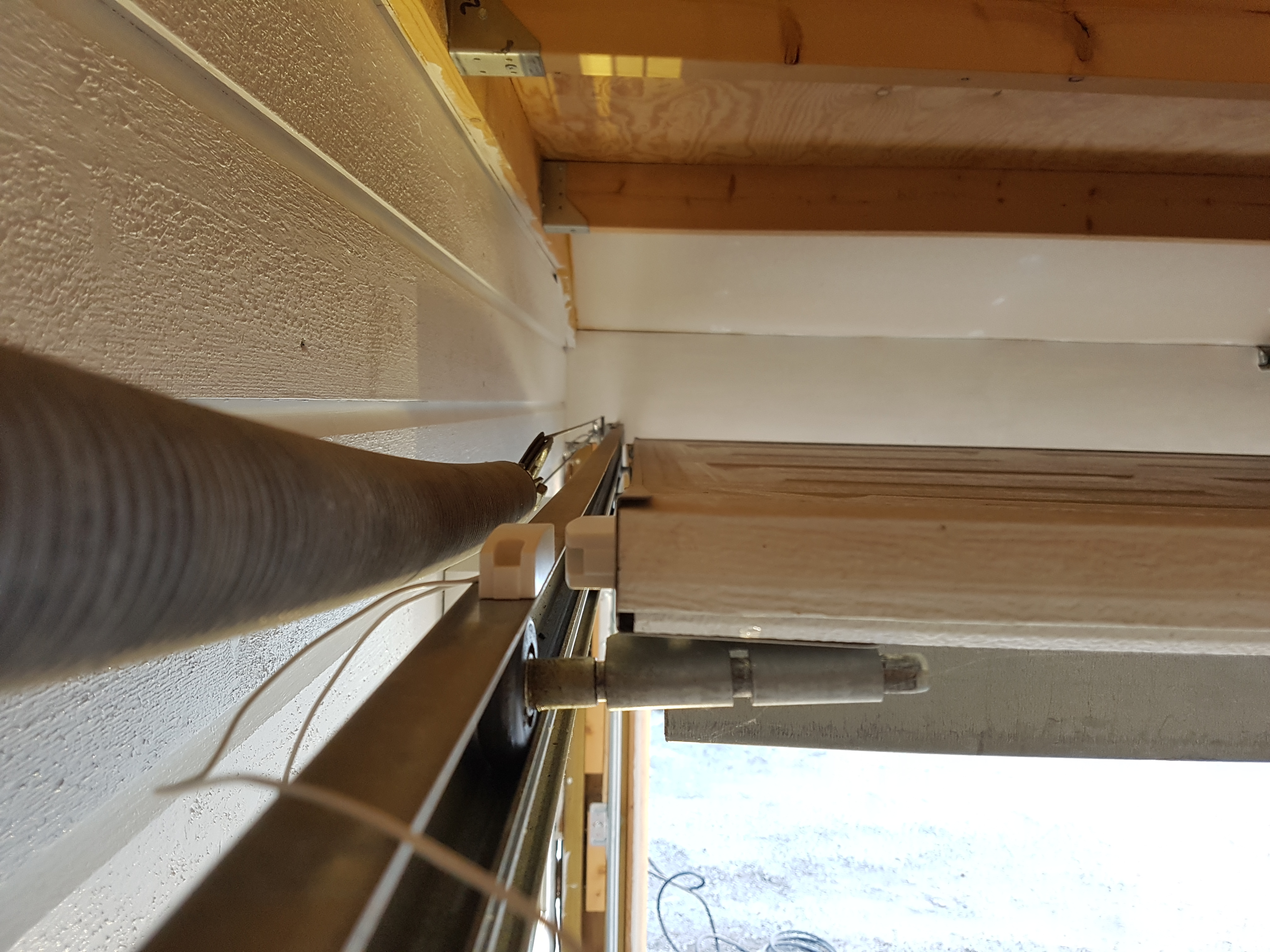
As a result, I installed these magnetic contacts that I hooked up to the Raspberry PI using pull up resistors.
Whenever the magnets gets in proximity of each other, a relay inside is activated and I can read the status on the Raspberry Pi.
Home Assistant Integration
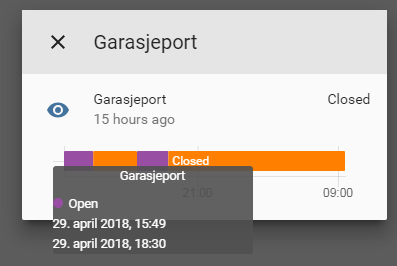
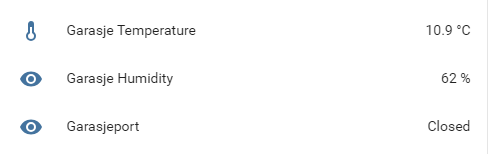
Once completed, I integrated the Garman 2000 REST API towards my Home Assistant instance, by creating a custom sensor for viewing and logging the status. I have also integrated a temperature and humidity sensor to this setup and can easily see the overall status (to the right below), and drill down to see the details (left picture).
So now, I can sit on the other side of the world and enjoy a fruity cocktail on a beach, and verify that my garage door is open or closed.
Whenever I need to search through multiple files after a specific term, I usually turn to GNU grep. If I happen to be on a Windows computer, I normally install Cygwin that allows me to use the same tool. If all else fails, or I am unable to install Cygwin for some reason, I turn to the the built-in Windows command line tools find and findstr for emergencies.
Grep is a great tool. It’s easy to learn, and it has multiple additional functionaltity (like regular expression search patterns) for finding that particular needle in the haystack you are looking for .
In its simplest form, you normally run:
grep "search term" *
This will search through all files in the current folder and report where instances of “search term” are found.
If you however need to search through the current folder (which also happens to contain multiple subfolders), and you want to do a recursive search through all the subfolders, you would on a Linux system normally write the following:
grep -r "search term" *
And you will then get the desired response. Grep will recurse through the current directory and all subdirectories for instances of “search term”.
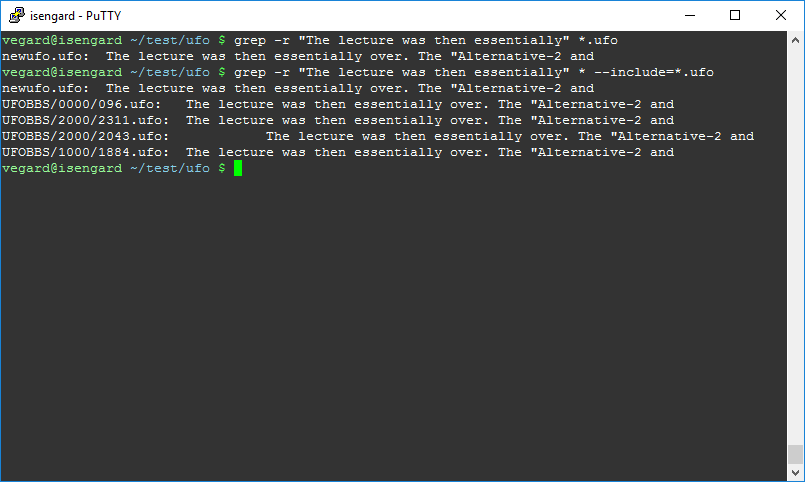
I got really surprised the other day when I had to do a recursive search on files with a specific suffix, like *.txt. Beforehand, I knew to a certain degree what the result would be, but grep was unable to find what I was looking for! Let me illustrate by example:
For this test we will use a random set of text files found on the internet. For my own amusement, I used the ufo archives from textfiles.com, located at http://archives.textfiles.com/ufo.tar.gz. Feel free to try out for yourself.
Now, if we want to find out which files that contain a specific search term, in the current directory and all subdirectories, the intuitive approach would be to run the following command:
grep -r "The lecture was then essentially" *.ufo
Don’t you agree? However, grep will not provide the desired response if you run this command!
Instead, it will search through all files in the *current* directory!
In order to search through all the subdirectories as well, you need to use the following command:
grep -r "The lecture was then essentially" * --include=*.ufo
This will give the desired output. Note that the file search pattern has been modified from “*.ufo” to “*”.
I haven’t confirmed my theory on this yet, but my assumption is that “*.ufo” is interpreted by the shell first and then passed on to grep. Grep would then think (since the shell interpreted your input first hand) you would only be interested in the files listed in the current directory.
Now that you know better, you won’t make the mistake I did (and probably have done several times earlier without knowing better!). Happy searching!
Elite Dangerous is a fantastic game. Made by Frontier Developments, the game is (in my honest opinion), one of the best space ship simulators available on the market for consumers. Especially if you truly immerse yourself into the game by using additional hardware, such as flight controllers (I have a Thrustmaster Warthog) or VR headsets like Oculus Rift. If the latter is too expensive (or you feel it is too much of a strain on the eyes to use for longer periods of time), it is possible to further enhance the gameplay using head tracking devices.
One such head tracking device is the EDTracker. It is recognized by the operating system as a joystick, so it can be used for several different games and applications. Check out the demo video below!
EDTracker consists of both hardware and software. The hardware can be bought ready to use, or you can buy the parts and assemble it yourself. Self-assembly is much cheaper, but it requires that you have a soldering iron and some basic skills in electronics (as in know how to read a drawing, use a multi meter, how to solder/desolder, etc.). If you choose to assemble it yourself, the parts cost around £19 GBP included shipping to Norway, not including solder and wires.
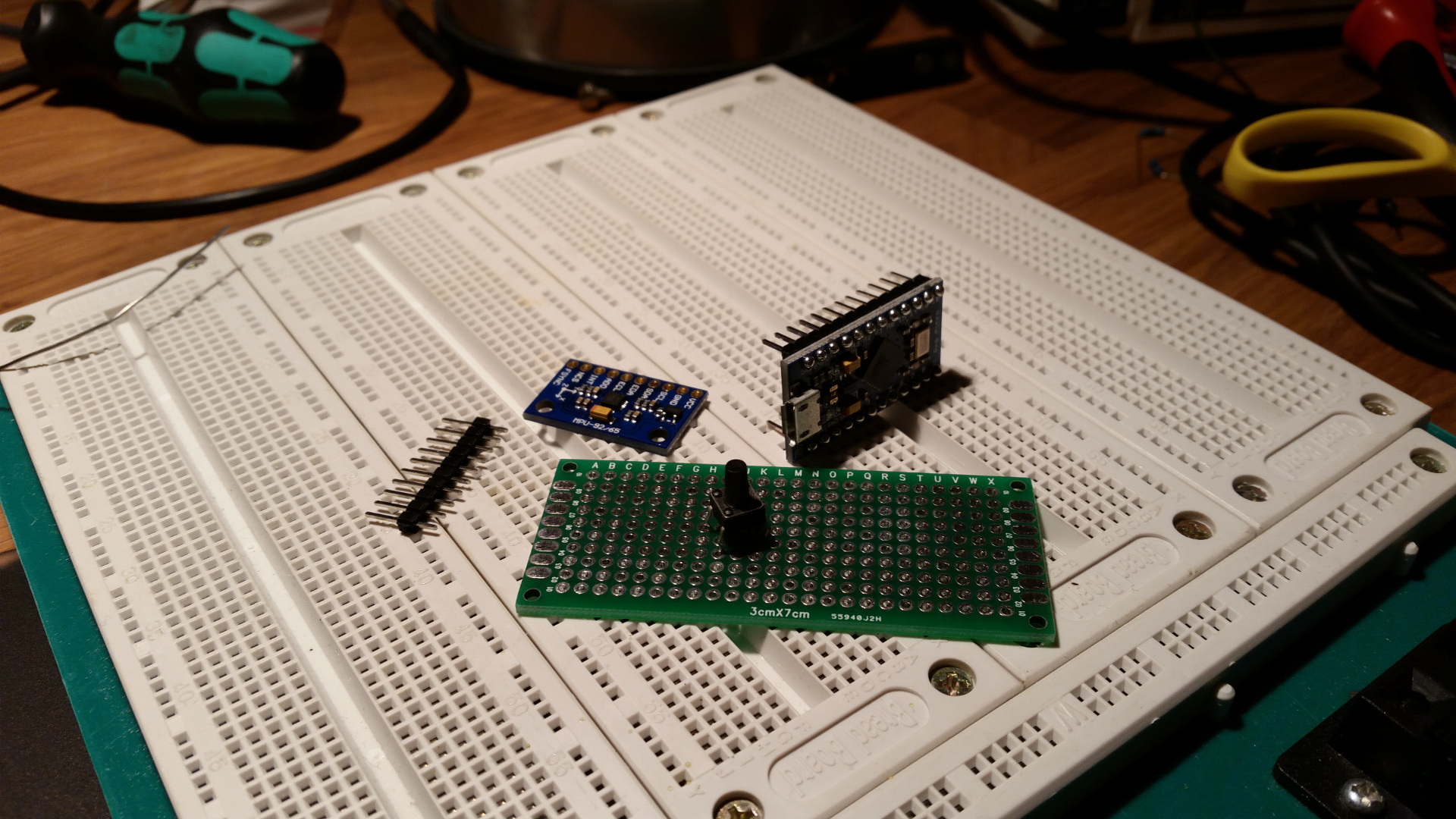
Here’s a photo of the parts I received. It includes an Arduino clone called Pro Micro (ATMega 32U4 chip), a prototyping board, a tactile switch and most importantly, the MPU-9250 chip which provides gyro, accelerometer and compass.
For wires, I just stripped some CAT 5e cable.
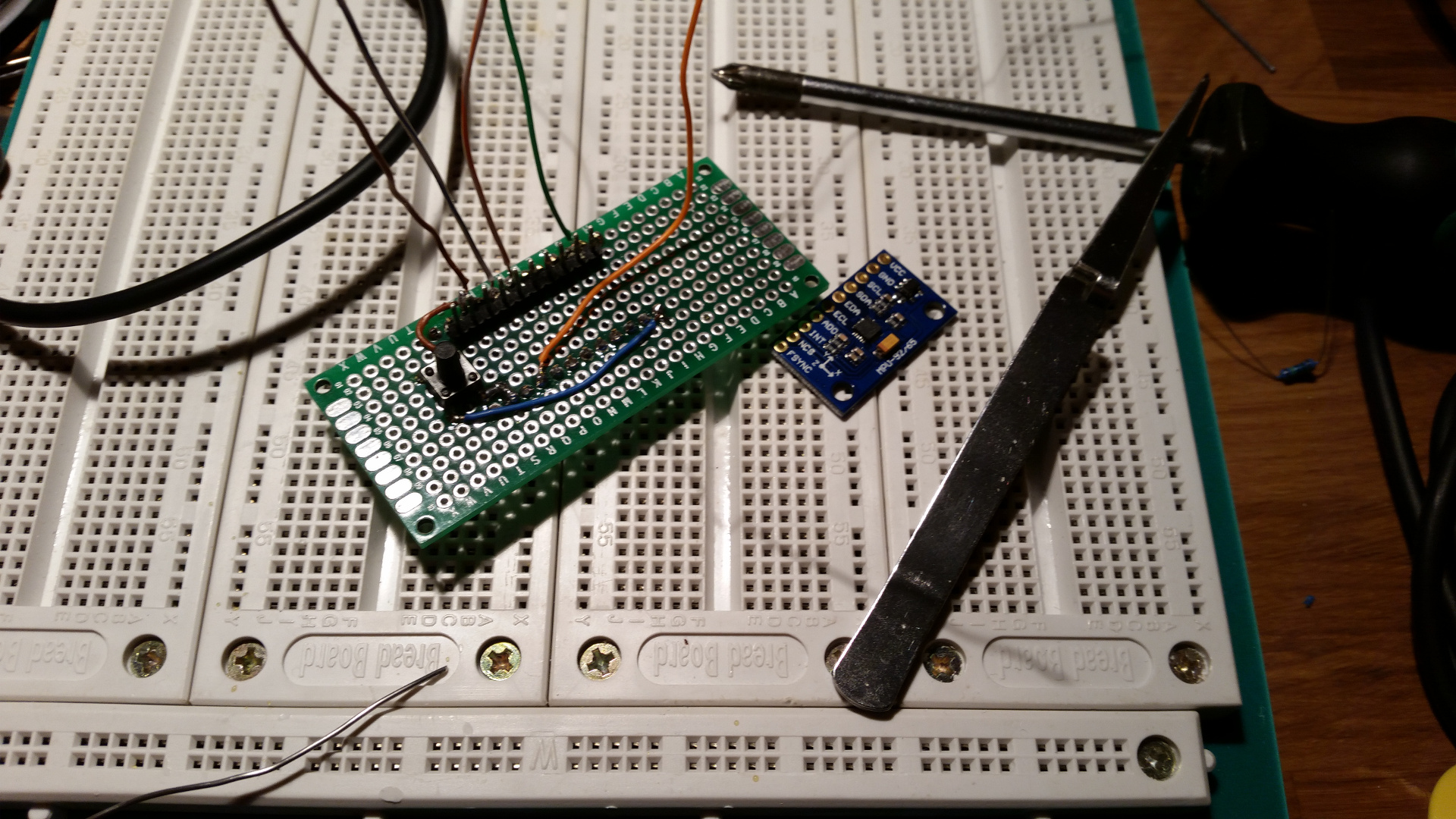
The Pro Micro controller is now soldered on the protoboard in addition to the tactile switch with wiring. Brown wire is GND, blue is button input, orange is VCC (for powering the MPU-9250). The remaining wires are for data. My build deviates somewhat from the drawing, as I have mounted the microcontroller “upside down” that I have mounted the microcontroller upside down, for easier access
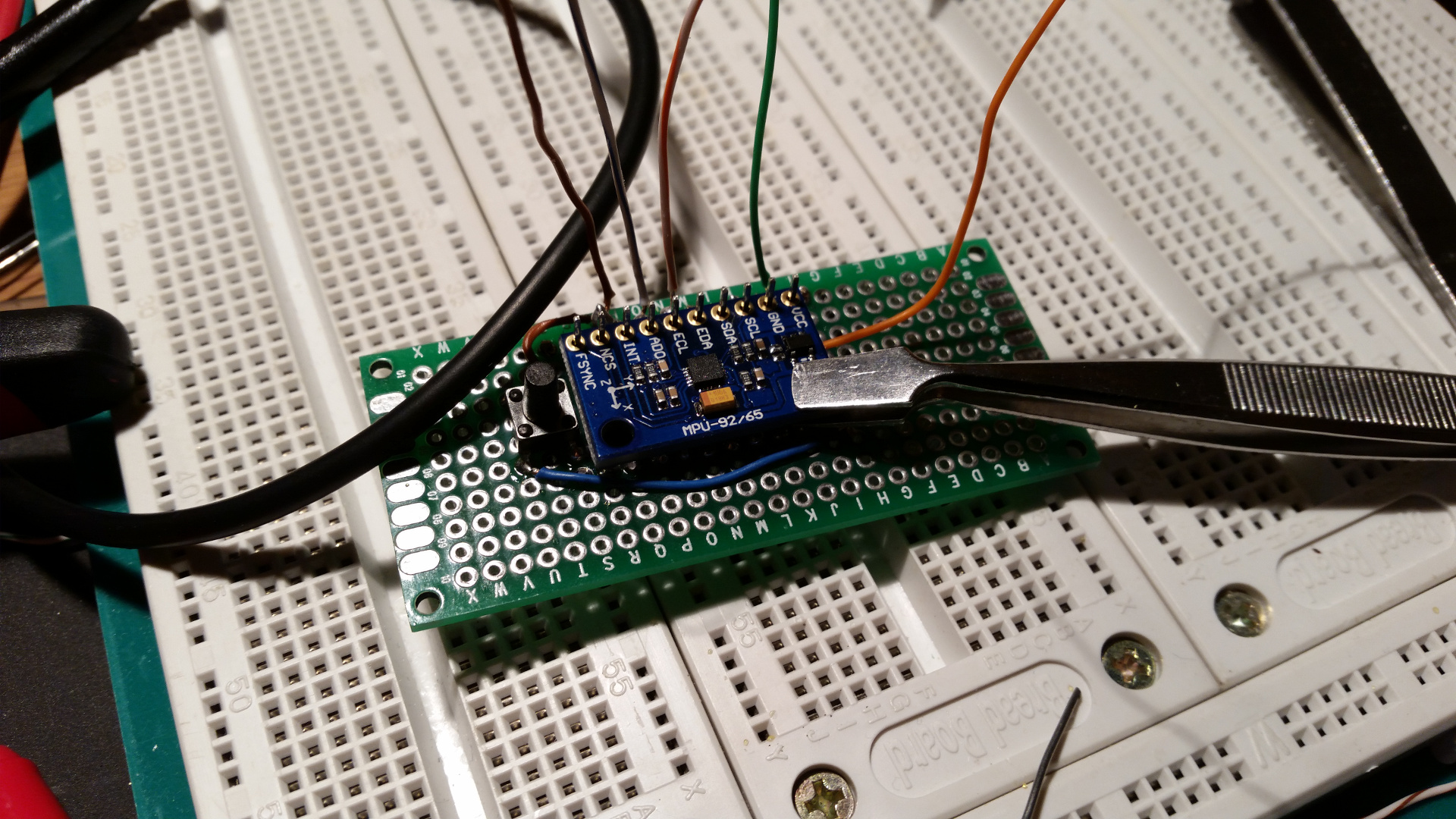
Adding the MPU-9250.
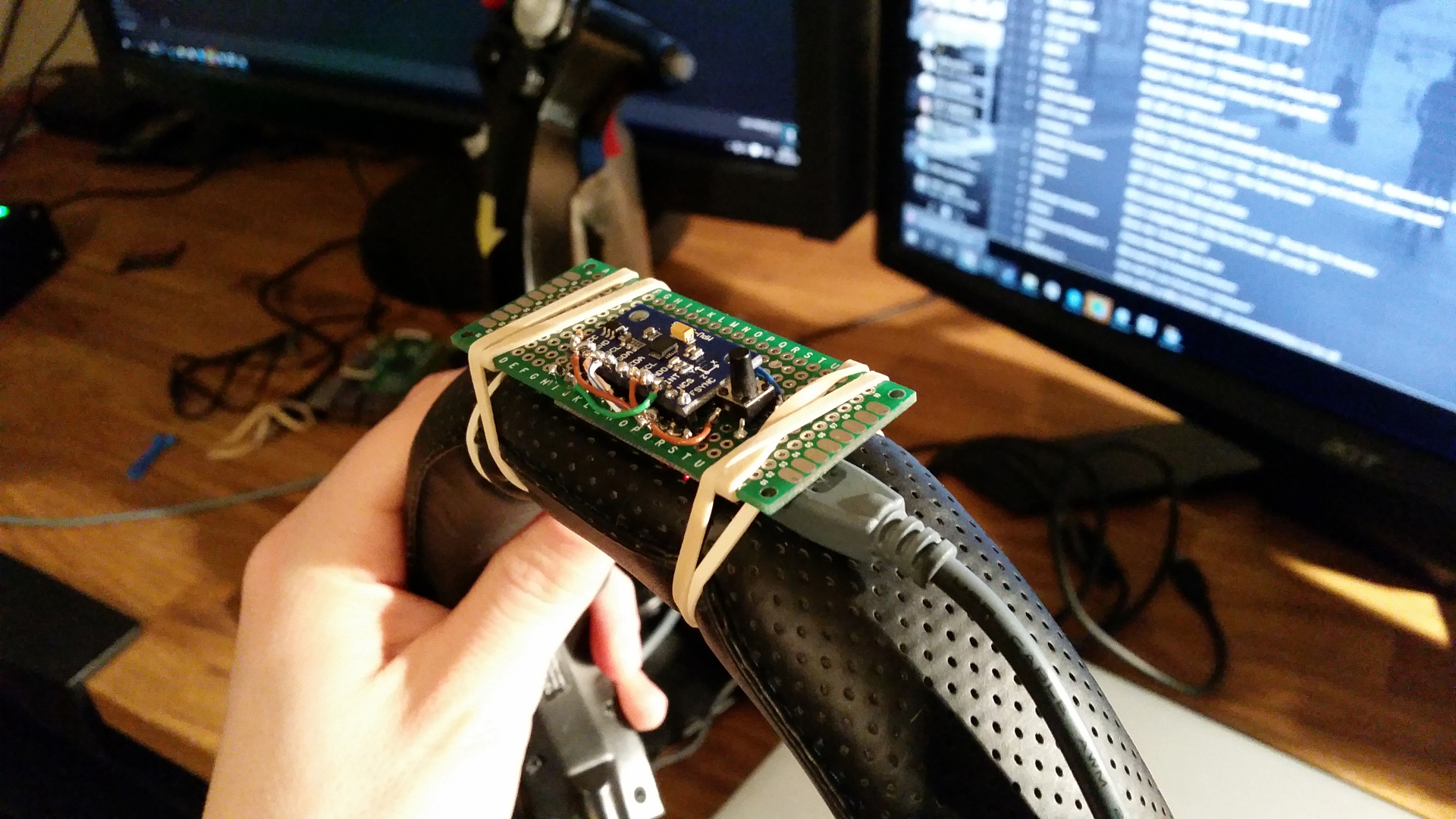
Final assembly complete with direct exposure to the circuit board for extra Nerdy™ look.
Finally, I downloaded the EDTracker GUI for uploading the software to the controller. After I finished calibration, I made a short test available on Youtube demonstrating that it works. I’ll probably use this a lot in Elite Dangerous from now on 🙂
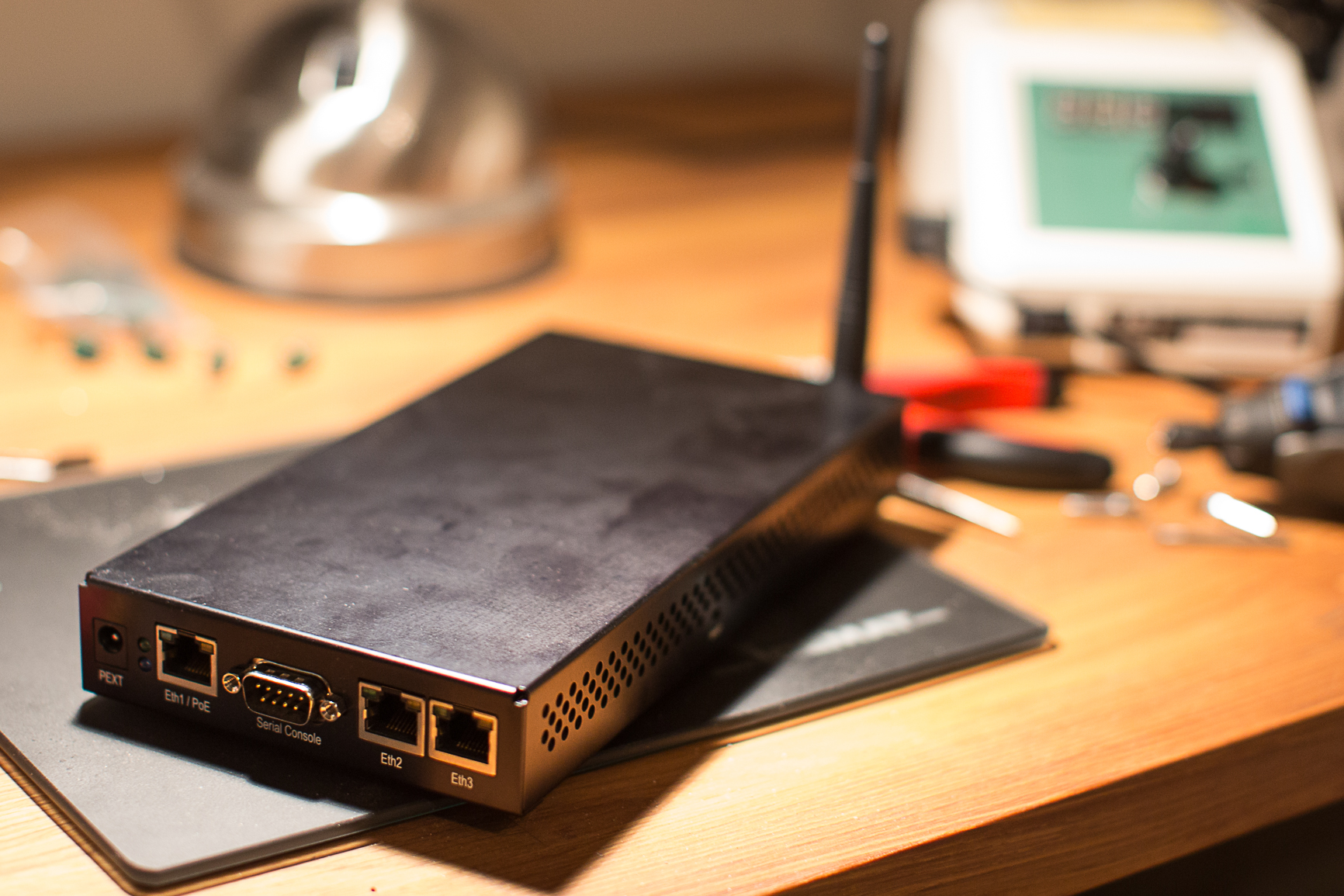
To solve an IPTV/IGMP issue I had a while back, a friend gifted me a Routerboard 433 UAH. Personally, I love this thing! It provides a really snappy experience, and managed with ease to handle all my network traffic. In addition, the system was neatly managed as it was powered by MikroTik RouterOS.
Up until a few weeks ago, I had no issues with this. I had then been a proud owner of this for about two years (and it was probably a couple of years old when I got it). Then all of a sudden, it started rebooting. I didn’t think much of it at first, as it happened perhaps once per day – but after a few days it happened more often until it finally ended in an infinite boot cycle. Upon opening the chassis and manually inspecting the circuit board, I found that the capacitors had busted.
Apparently, this is a known issue with Routerboard.. Cheap capacitors or a bad batch?
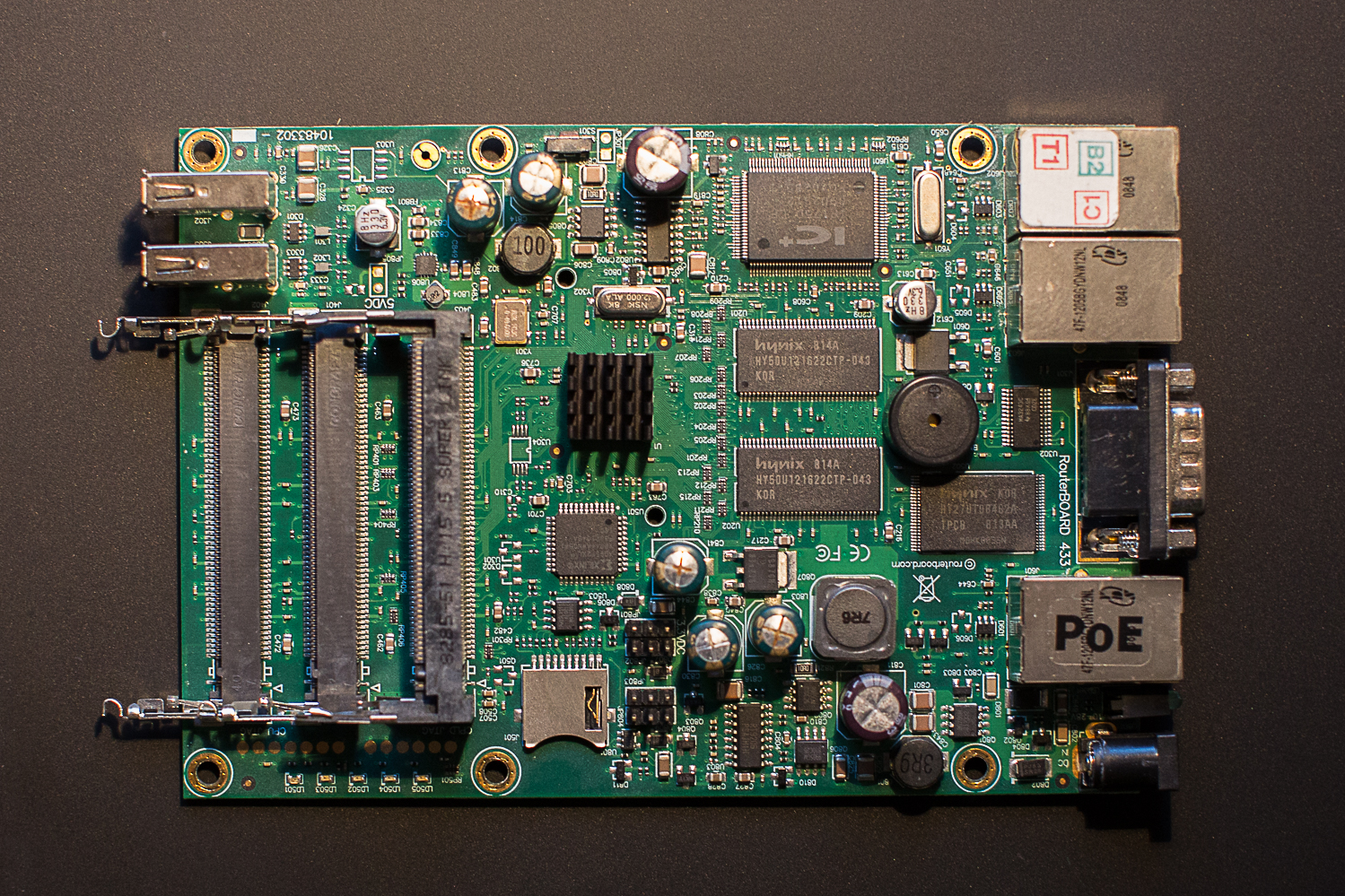
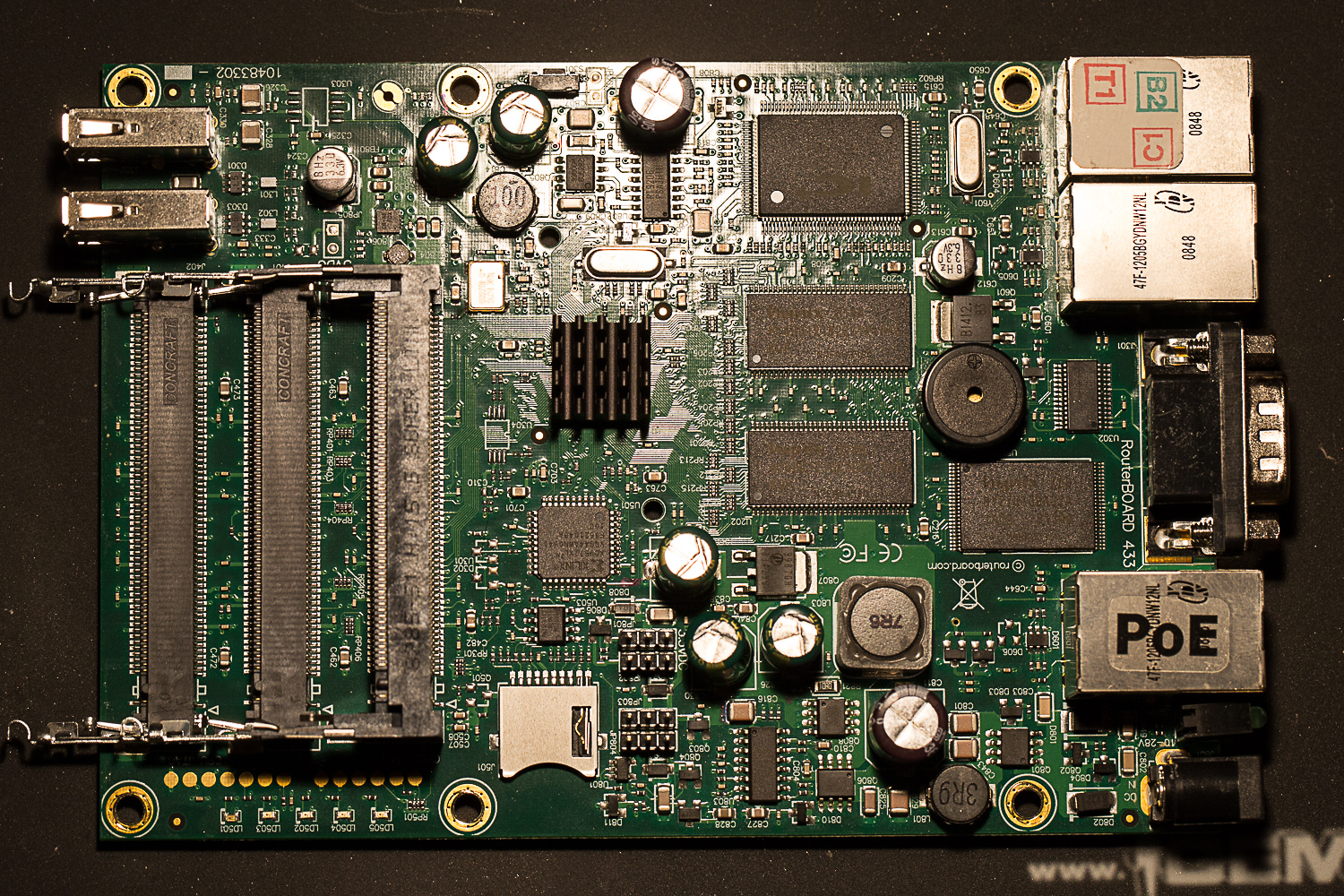
Here’s an overview picture of how my board looked like before any work was done.
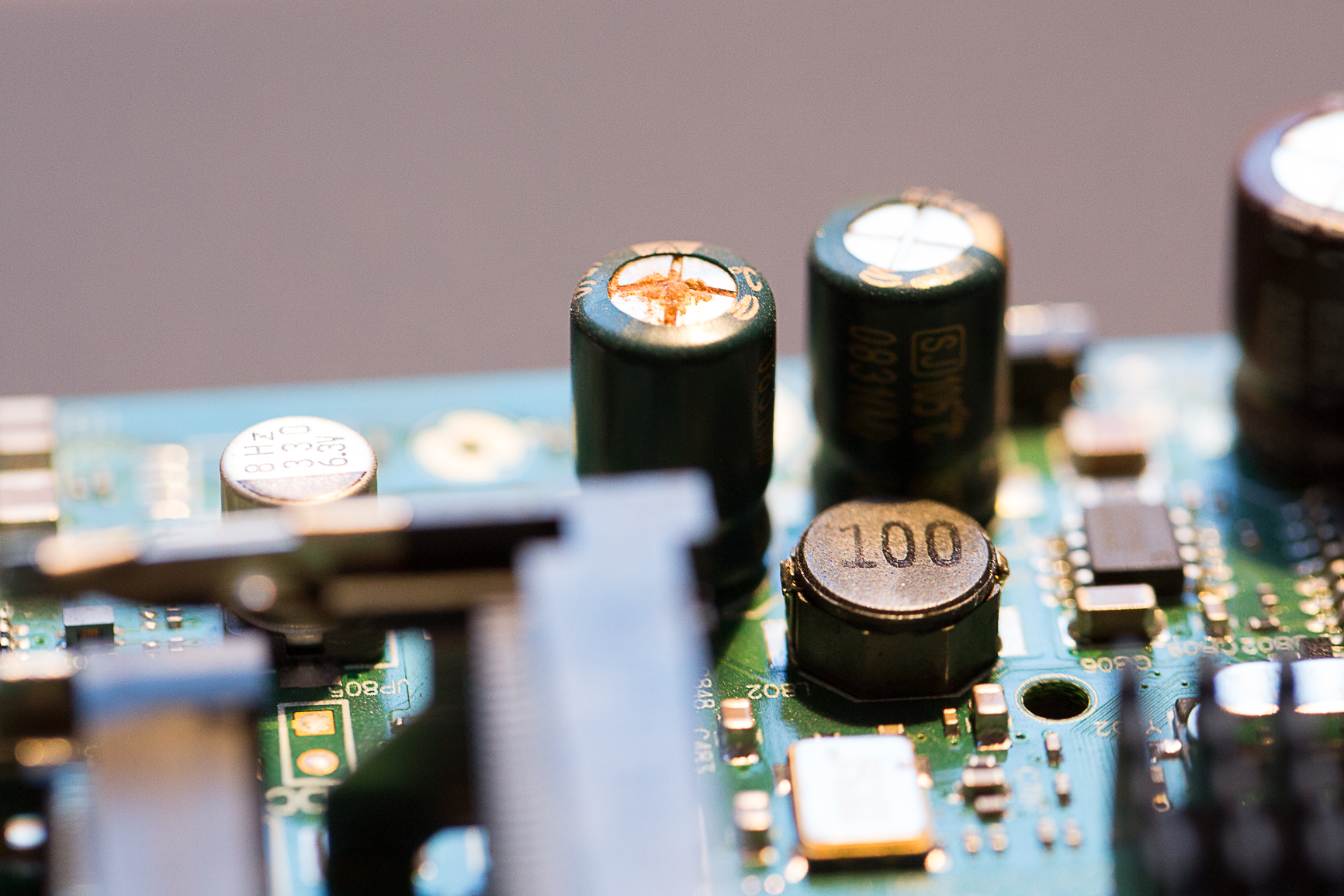
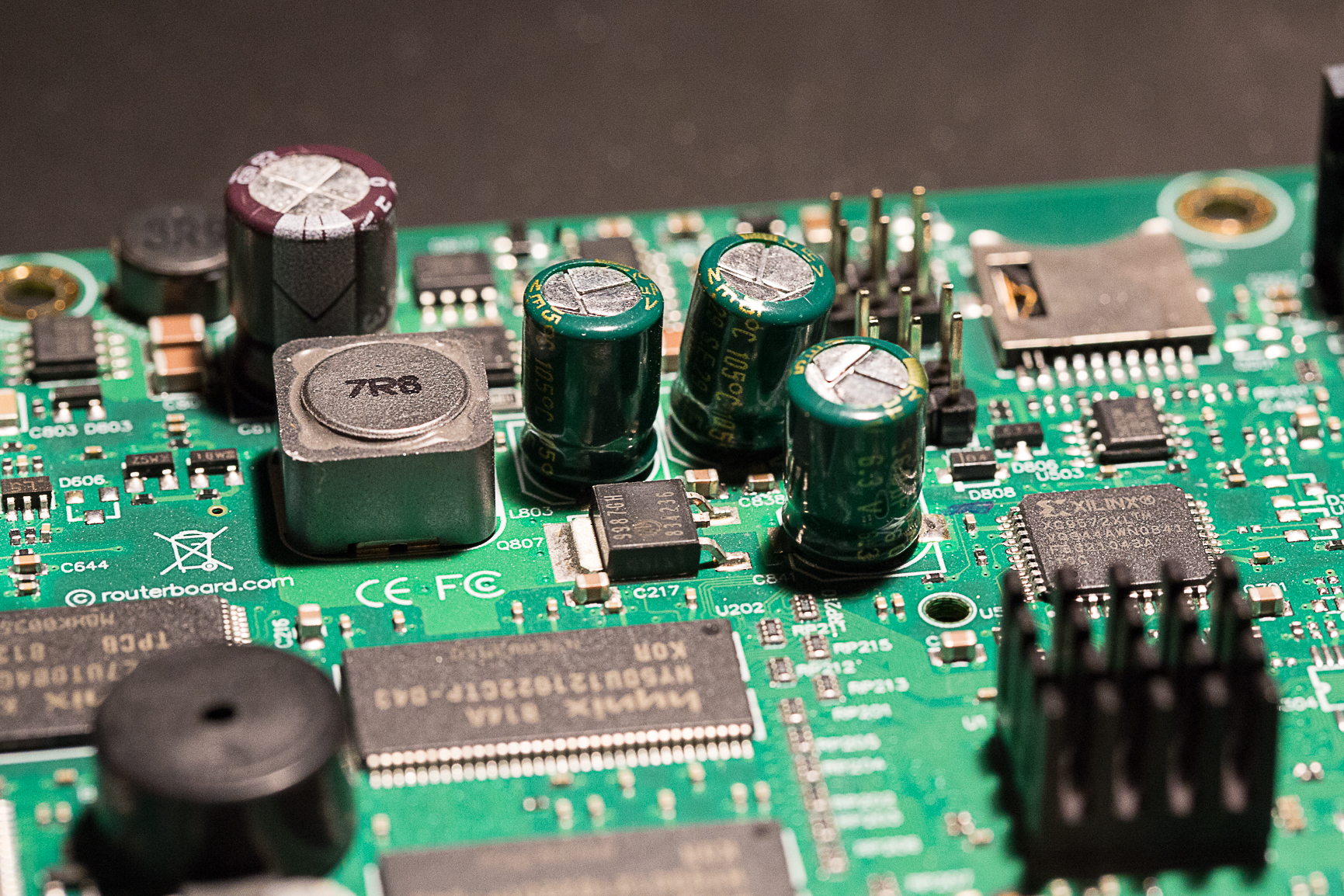
Here is a more detailed picture of how one of the capacitors had burst.
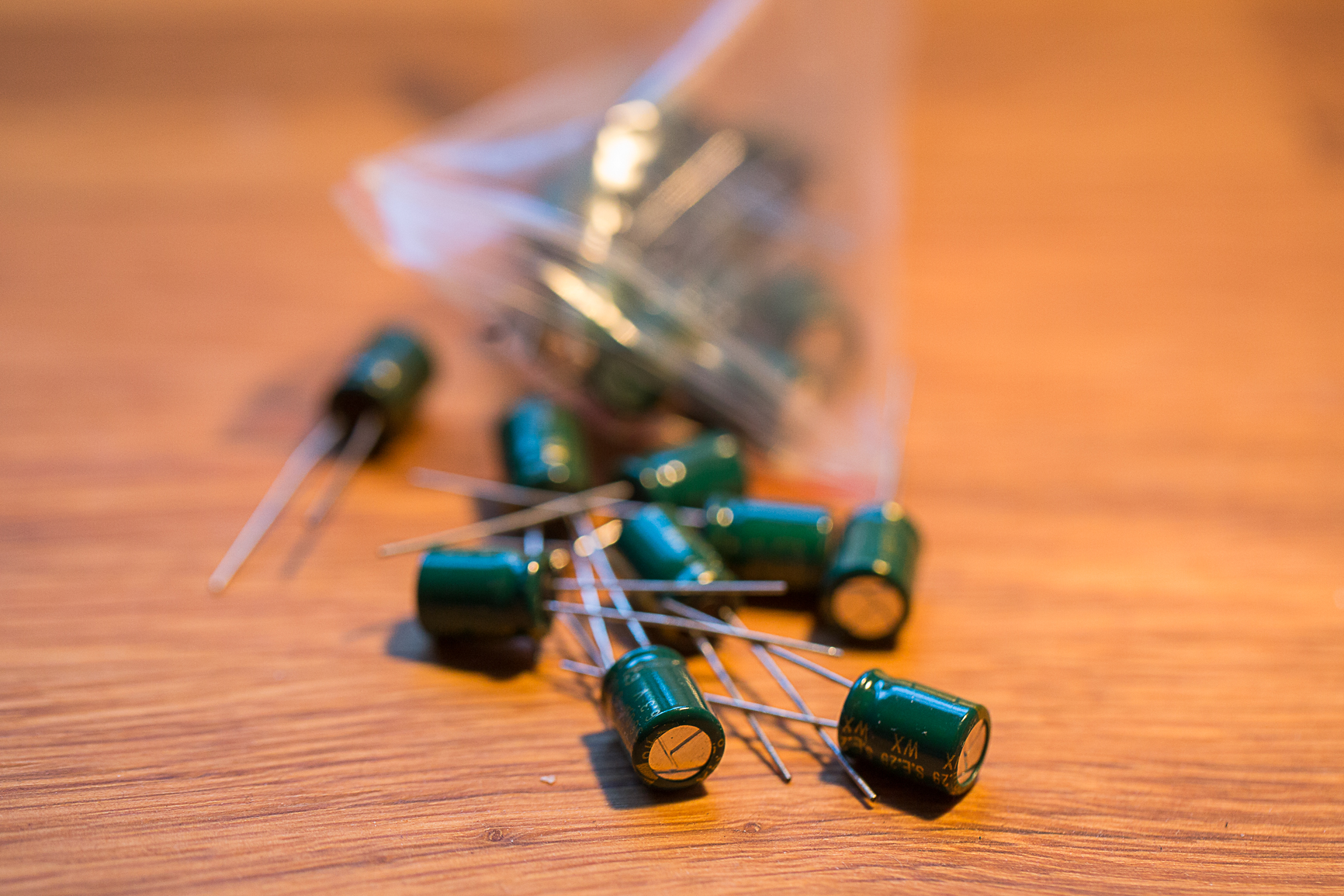
4 of 5 capacitors, rated 6.3V at 560 µF needed replacement. Luckily these are easily found at eBay, and arrived at my place 12 days after I ordered some new for $3.
Once the new capacitors arrived, I fired up my trusty soldering iron – and went to work removing the broken ones.
Desoldering and removing the old capacitors was not as easily as I initially thought. The solder used on the board from the factory was probably industrial rated and thus required a higher temperature than what my soldering iron managed (max 405ºC). For this reason, I removed all the broken capacitors with wire cutters and drilled holes where the old solder was, using my Dremel 300.
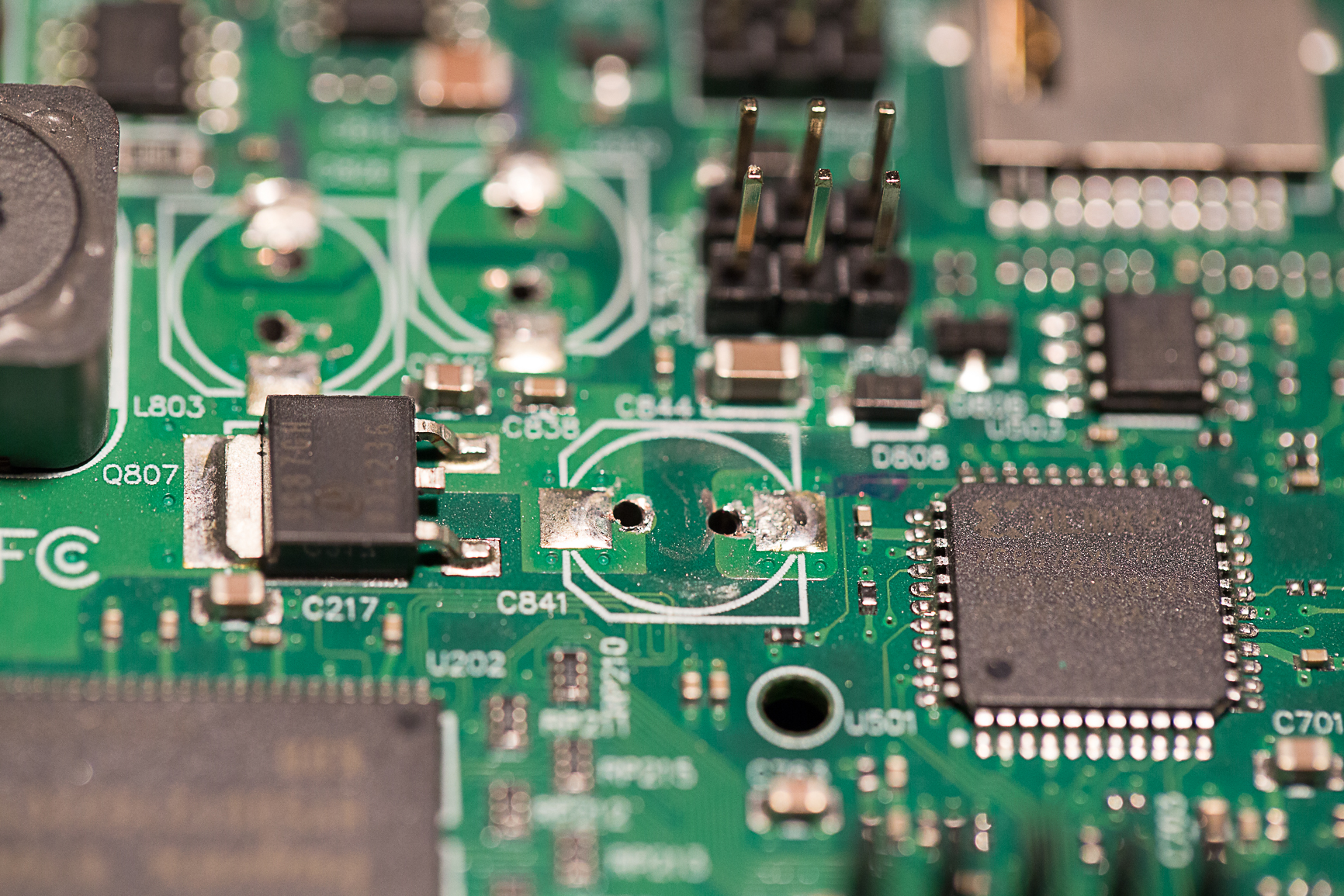
“Desoldering” complete. Ready for new capacitors.
New capacitors in place. Looking good!
All the broken capacitors are now replaced and soldered tight.
Fully assembled and ready for testing.
The device now booted as normal and was fully working as before. Instead of throwing the old board and buying a new one (1.999 NOK if bought in Norway, about $230) – I fixed the device for $3 in parts and about an hours work of desoldering/drilling/soldering.
Since I bought my house a year ago, which has a built-in garage with a radio controlled garage door opener, I have played with the idea that some day I will learn the basics of radio and replicate the signal from my garage door key fob and open the garage door from a command line.
This article explains step by step how I managed to figure that out. I have attempted to keep it strictly to the point and without involving too much detail. Interested readers are instead referred to the sources where I have found the information myself. Impatient readers can skip the next section, background, without losing context.
Background
Let me be frank. Before this project, I knew basically nothing about the technical aspects of radio. The topic always fascinated me, but never enough to actually start studying or examining how it works. It was first when I saw a YouTube video featuring a talk by the creator of rfcat which was held at the DEF CON ® 20 conference in 2012 that I became dedicated to learning the basics.
There are a few guides available online about these type of projects already (i.e. hacking fixed key remotes), but I couldn’t find one detailed enough for my scenario and simple enough for someone with my limited background in radio t0 understand. Before starting this project, my knowledge of radio was fairly limited to knowing how I could operate the radio in my car, that radio operates over different frequencies in the spectrum (radio broadcast, WLAN, RC etc) and that the data can be modulated in different ways (AM/FM) . I had no practical knowledge whatsoever and barely knew what pulse code modulation (ASK/OOK) was.
However, that didn’t stop me from learning how it could be done, and I combined the information I found online with additional support from two individuals on the #rfcat IRC channel on Freenode, AndrewMac and samy^^, who pretty much taught me everything I needed to know. AndrewMac had written an article on the topic a few years back, and samy^^ demonstrated a neat trick to me on how to decode wave patterns, which I will show you later on.
Gear
The gear I used to accomplish this project is listed below. All but the proprietary key fob can easily be ordered online.
Software Defined Radio (SDR) that you can buy off Deal Extreme for $20
The guide assumes that the reader is using a Linux based operating system. If not, there are other alternative applications you can use (e.g. sdrsharp instead of gqrx), and you can probably, with a little effort, apply the remaining steps to suit your environment. If you’re running on a Linux based OS, you need three different applications to finish this project.
Gqrx
From the official README, Gqrx is an (experimental) software defined radio application implemented using GNU Radio and the Qt GUI toolkit. It works on Linux and Mac OSX. We will use this application to identify the signal from the key fob and make a recording of it.
rfcat
rfcat, similar to GNU cat, is aiming to be a standard utility to read or write the contents on the radio frequency spectrum. The main goals of the project are to reduce the time for security researchers to create needed tools for analyzing unknown (rf based) targets, to aid in reverse-engineering of hardware, and to satiate the developer’s rf lust. We will use this tool to replay the data we will decode from the key fob.
Audacity
Audacity is a free (both as in free beer and freedom), easy-to-use, multi-track audio editor and recorder for Windows, Mac OS X, GNU/Linux and other operating systems. In addition to playing audio, you can also use audacity to analyze wave patterns (e.g. transform a wave into a bit stream), which we will do later in this guide.
Flashing the CC1111EMK with custom firmware
As mentioned on the CC1111EMK product specification from Texas Instruments, it is designed to operate in the 868 MHz and 915 MHz frequency bands. The CC1111 SoC is however capable of operating in the following ranges, given that it has been flashed with the correct firmware:
300 – 348MHz
391 – 464MHz
782 – 928MHz
For additional details on the capabilities of the CC1111 chip, check out this information from the rfcat developers.
To flash the CC1111 with custom firmware, you also need a JTAG adapter like a GoodFET.
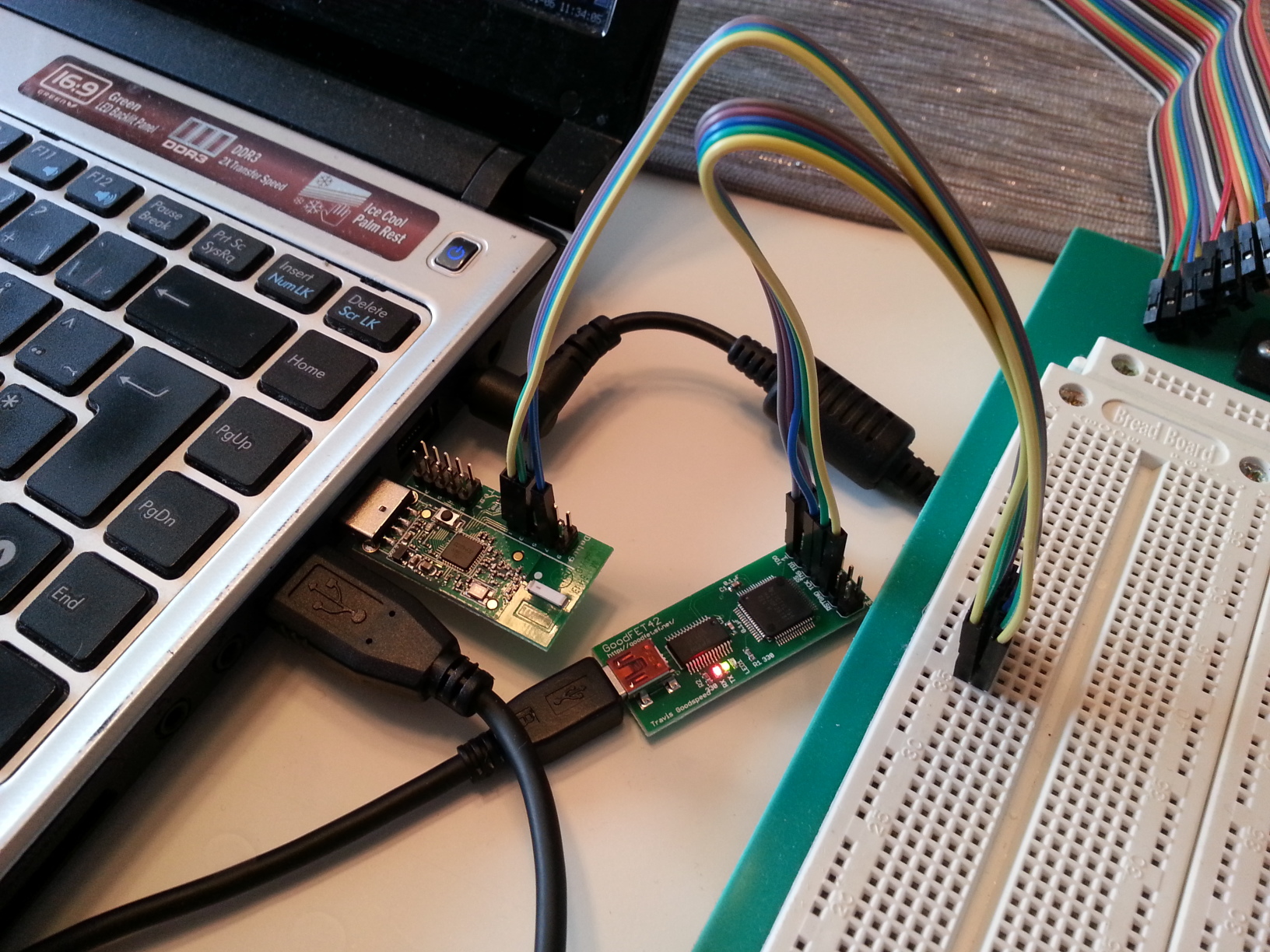
Flashing the CC1111EMK. You only need to plug in the GoodFET to the USB socket as it will deliver power to the CC1111 SoC.
Once you have all the gear, connect the JTAG adapter to the CC1111 debug pins as per the rfcat documentation and as shown in the above image (I only had male-female connectors, so I had to use a breadboard in between).
Once you have the connectors terminated, follow the remaining instructions in the rfcat documentation:
Install sdcc
Install make
Make sure both are in the path
cd into the “rfcat/firmware/” directory
“make testgoodfet” will read info from your dongle using the GoodFET. You should see something like this:
SmartRF not found for this chip.
Ident CC1111/r1103/ps0x0400
Freq 0.000 MHz
RSSI 00
“make backupdongle” will read the current firmware from your dongle to the file …/bins/original-dongle-hex.backup.
(“make restoredongle”) to revert to the original firmware.
“make clean installRfCatDonsDongle” will clean, build, and install the RfCat (appFHSSNIC.c) firmware for a cc1111emk.
Once you have finished flashing the CC1111EMK, we continue by capturing the signal from the proprietary key fob.
Capturing the signal
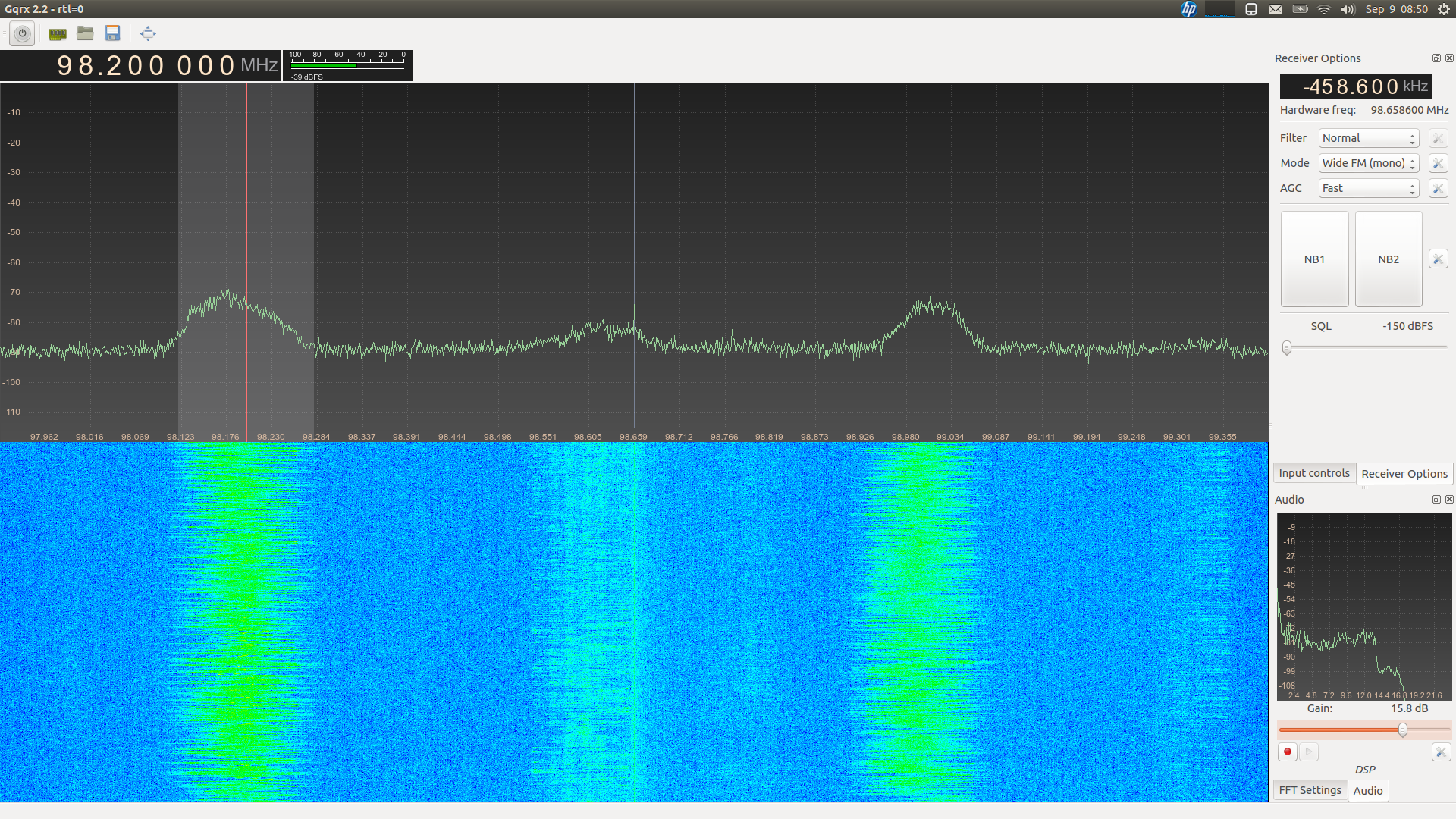
Capturing the signal requires that you can listen to the rf spectrum in gqrx, so you need to connect your SDR to a USB socket and ensure you have the correct drivers installed. After that, you can activate the SDR from the power button in gqrx, and it will look something like the below screenshot (which has nothing to do with this project). The screenshot below displays two strong wide FM radio signals, where one is operating on the 98.200 MHz frequency.
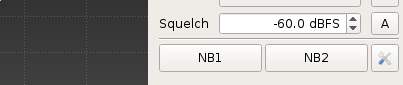
To make a recording of the signal from your key fob, you need to know which frequency it is operating on. Most of these garage door key fobs operate somewhere around 433 MHz (mine was set to 433.92 MHz, and it was even printed on the remote). Once you have discovered the frequency, try to squelch the background noise as much as possible to get a clean signal. This is done by adjusting the squelch parameter, as shown in the below screenshot. As my SDR’s antenna was quite close to the keyfob, -60 dBFS turned out great.
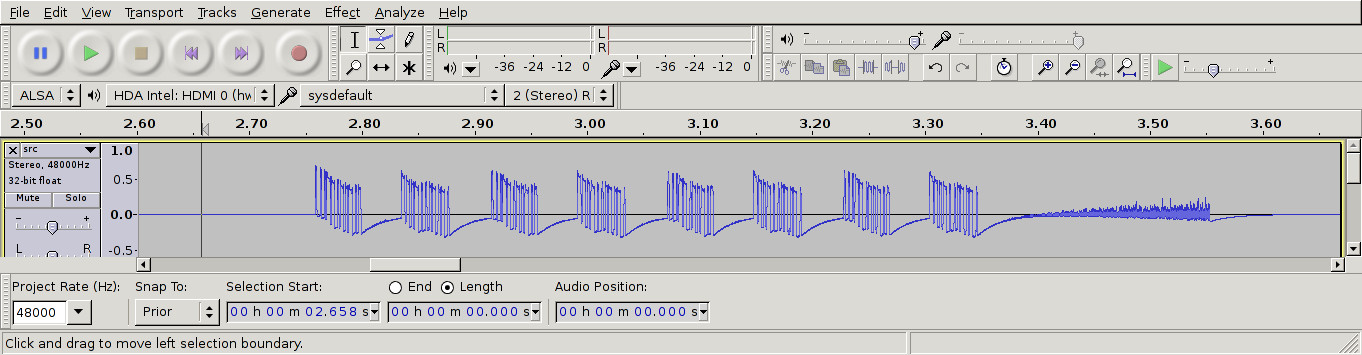
Once you have made a recording, you can look at the result in Audacity.
We are only interested in the data between 2.75ms and 3.35 ms. The pattern after 3.35 ms is simply noise from the transmitter. As we can see from the recording, there are 8 data groups (or “packets”). The next step now is to further analyse these blocks and ultimately decode it.
Decoding the signal
Decoding the signal can be done in several ways. My first attempt was to use the rtl_433 application which allowed me to make a data dump of the signal (as interpreted by rtl_433), as shown from the output below. However, I had no way of verifying whether it was correct or not except for the fact that 8 packets were sent.
As we can see from the output, rtl_433 reports that
The keyfob sends 8 packets, of which 2 are unique (i.e. 2 alternating packets, sent four times)
Packet 1 consists of the bitstream 00011010 10000000 (0x1a, 0x80)
Packet 2 consists of the bitstream 11010001 01000000 (0xd1, 0x40)
I suspected that the decoded bitstream was incorrect, as the last part of all the eight packets (alternating between 10000000 and 01000000) didn’t resemble the waveform previously displayed.
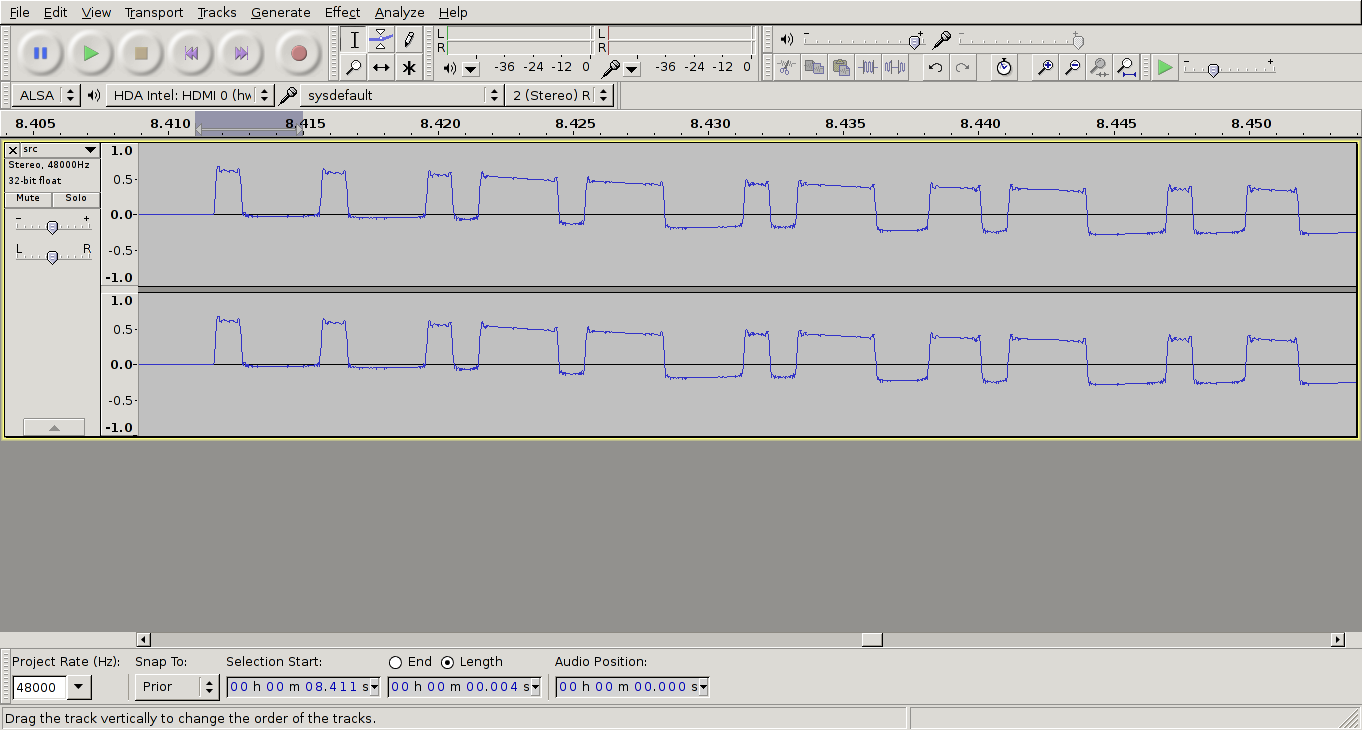
The image below shows the first of eight packets that are transmitted from the key fob. As seen, there are two types of pulses that are sent – short and long. The packet starts with three short pulses, followed by two long etc. If we compare this with the output of rtl_433, the first eight bits (00011010) matches the pattern where short pulses are interpreted as 0 and long pulses as 1 – but the second byte (10000000) is way off.
This might have happened due to incorrect configuration parameters in rtl_433 when I made a dump of the data. If you look closely, you’ll notice that the packet doesn’t even contain 16 pulses, which would be required to decode the data to two bytes with this method, but merely twelve!
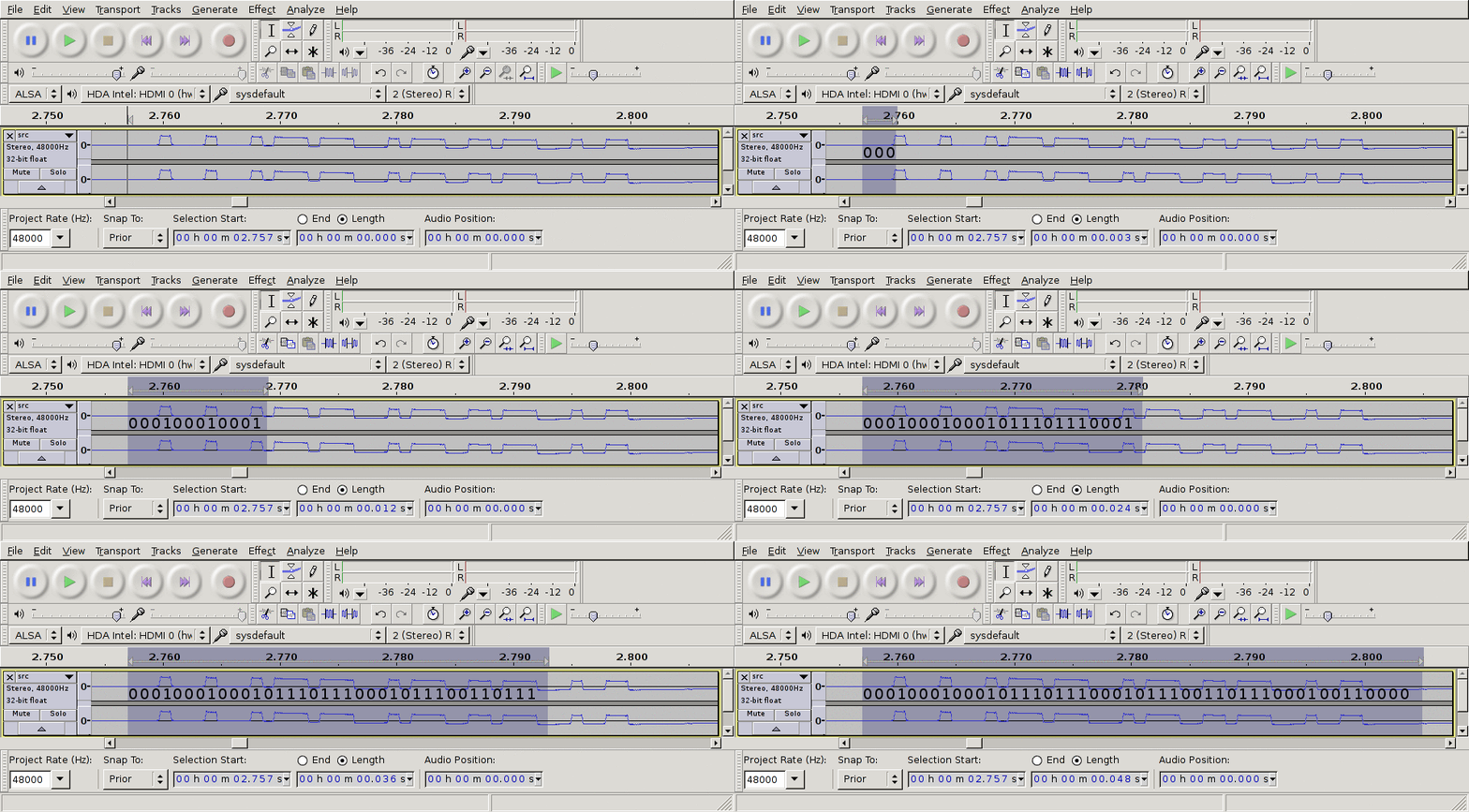
At this point, I started asking more experienced people on IRC for input on how to decode the 12 pulses, and I eventually got in contact with samy^^ on the #rfcat channel on Freenode, who suggested not to count each pulse as a bit, but consider each pulse, which lasts ~4ms, as 4 bits! This is essentially the same as setting the baud rate to 1000 Bd.
Since Audacity has the possibility to highlight data down to 1 ms, this made the process a whole lot easier. I have made a GIF below to illustrate this. Note that I no longer count short pulses as 0 and long pulses as 1, but every 1 ms as either 0 or 1, depending on whether the carrier (i.e. when the amplitude is high) is present or not.
Using this trick, the following 6 bytes can be extracted from this waveform:
00010001
00010111
01110001
01110011
01110001
00110000
After I had used this method to decode the first packet, I repeated the process for the second packet. Since the whole bit stream consisted of sending packets 1 and 2 repeatedly 4 times, we are now done with the decoding stage and can continue with replaying the data.
Replaying the signal
For replaying the signal, we use the rfcat library which is available here. The library is written in Python, and it is quite simple to get started using it. The official documentation (i.e. the README file which is part of the project) is quite good, but fails to mention signal strength and how you disable sending the default preamble.
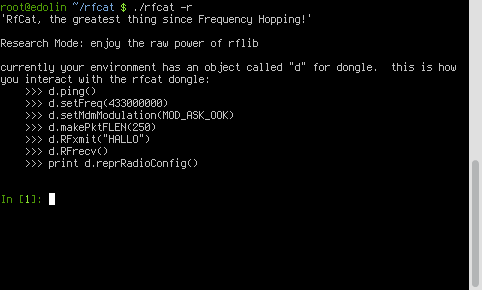
To use rfcat, you can either use the rfcat script, which is basically a wrapper to either Python or IPython (whichever is available) that imports all the libraries you need – or you can create a script yourself in case you need to do something a bit more advanced. The below screenshot shows the “welcome” screen when you fire up the rfcat script.
Two interesting methods that are not mentioned in the welcome screen, are:
d.setMdmSyncMode(0) – By default a preamble or sync word is sent before the user data. The keyfob used in this guide did not make use of a preamble, so we disable it.
d.setMaxPower() – By default the CC1111EMK with rfcat firmware transmits the signal with low power. If you run this method, it will set the power to the maximum which would make your signal travel longer.
Finally, the following code is my end result which allowed me to open my garage door from a CC1111EMK using rfcat and rfcat firmware.
#!/usr/bin/python2.7

import time
import sys
from rflib import *

FREQ = 433920000 # Set my frequency to the gate remote
PKTLEN = 6       # Set my packet length to 6 as I am sending
                 # 6 bytes in each packet
DRATE = 1000     # baud rate of 1000 means that a 1ms pulse
                 # can be counted as a bit

packet_1 = [
            '00010001', '00010111', '01110001',
            '01110011', '01110001', '00110000'
           ]
packet_2 = [
            '00010001', '00100100', '01100111',
            '01001010', '00001111', '00011110'
           ]
data_hex_1 = [ chr(int(x, 2)) for x in packet_1]
data_hex_2 = [ chr(int(x, 2)) for x in packet_2]

def send_data(d, data, repeat=4):
    # PCM'ify the packets
    for i in range(0,repeat):
        for packet in data:
            d.RFxmit(packet)
try:
    d = RfCat()
    d.setFreq(FREQ)
    d.setMdmModulation(MOD_ASK_OOK)
    d.makePktFLEN(PKTLEN)
    d.setMdmDRate(DRATE)
    d.setMdmSyncMode(0) # disable syncword and preamble as this is not used
                        # by the remote.
    #d.setMaxPower()    #imma chargin' mah lazer
    send_data(d, ["".join(data_hex_1), "".join(data_hex_2)])

except Exception, e:
    sys.exit("Error %s" % str(e))
    # TODO implement software reset in case of USB timeout
If you are interested in more information regarding RF signals and use of rfcat, I recommend reading:
I take a lot of pictures and little is more important to me than making sure that all my photos are kept in safe storage. For this purpose, I use the online backup service from CrashPlan. With the CrashPlan backup client being written in Java, it is supported on many platforms, including GNU/Linux, and it even allows you to configure your CrashPlan server via SSH.
CrashPlan is a great “bang for buck”, costing only as little as $4/month (if you buy a 4 year subscription) and top you have unlimited online storage. What is the catch you ask? Well, if you ask me the main catch is that with the “Home” edition (for $4/month), you are not able to access its API. This is important to me as I use Nagios to monitor all my servers and also important services that I need to know is up and running 24/7.
Using Nagios to monitor CrashPlan
I figured out a way to accomplish this as the CrashPlan server application produces a history log of whatever it is doing, called “history.log.0”. This file typically looks something like this:
I 04/12/14 03:00AM [Standard] Scanning for files to back up
I 04/12/14 03:01AM [Standard] Scanning for files completed in < 1 minute: 36,575 files (201.70GB) found
I 04/12/14 05:10PM [Standard] Starting backup to CrashPlan Central: 68 files (50.70KB) to back up
I 04/12/14 05:10PM [Standard] Completed backup to CrashPlan Central in < 1 minute: 68 files (50.70KB) backed up, 12.90KB encrypted and sent @ 48 bps
I 04/12/14 05:48PM [Standard] Starting backup to CrashPlan Central: 7 files (2KB) to back up
I 04/12/14 05:48PM [Standard] Completed backup to CrashPlan Central in < 1 minute: 7 files (2KB) backed up, 1.70KB encrypted and sent @ 112 bps
I 04/13/14 03:00AM [Standard] Scanning for files to back up
I 04/13/14 03:01AM [Standard] Scanning for files completed in < 1 minute: 36,649 files (201.70GB) found
I 04/13/14 03:01AM [Standard] Starting backup to CrashPlan Central: 2 files (1KB) to back up
I 04/13/14 03:01AM [Standard] Completed backup to CrashPlan Central in < 1 minute: 2 files (1KB) backed up, 1KB encrypted and sent @ 32 bps
I 04/13/14 09:14PM [Standard] Starting backup to CrashPlan Central: 57 files (771.70MB) to back up
I 04/13/14 09:30PM [Standard] Completed backup to CrashPlan Central in 15 minutes: 57 files (771.70MB) backed up, 743.60MB encrypted and sent @ 7.3Mbps
I 04/13/14 10:26PM [Standard] Starting backup to CrashPlan Central: 12 files (15.70MB) to back up
I 04/13/14 10:26PM [Standard] Completed backup to CrashPlan Central in < 1 minute: 12 files (15.70MB) backed up, 14.30MB encrypted and sent @ 3.6Mbps (Effective rate: 8.2Mbps)
I 04/14/14 03:00AM [Standard] Scanning for files to back up
I 04/14/14 03:00AM [Standard] Scanning for files completed in < 1 minute: 36,718 files (202.50GB) found
I 04/15/14 03:00AM [Standard] Scanning for files to back up
I 04/15/14 03:00AM [Standard] Scanning for files completed in < 1 minute: 36,718 files (202.50GB) found
In brief, there are three important data types we need to parse:
The timestamp
When the backup (or scan) job started
When the backup (or scan) job completed
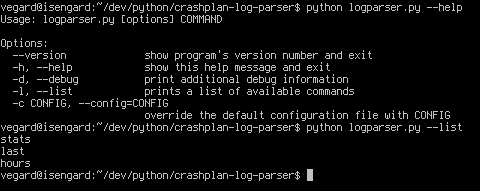
If you are used to parsing text and recognizing patterns, you can easily write some regular expressions to extract the types of text that this log contains. I wrote a small application in Python (crashplan-log-parser) that does exactly this, and allows you to print the latest job that finished, statistics and also the number of hours passed since the last job was completed.
The above screenshot shows the command line options of logparser.py. The below screenshot however, shows the statistics command in use. Of a total of 110 jobs (found in the log file), 76 are scan jobs and 34 are backup jobs. The last backup was completed this morning 03:00 AM Norwegian time.
Finally, for integration in Nagios, the following command is also available. This prints the number of hours since the last backup or scan job was completed (integer value).
With this information, one could easily write a Nagios monitor script for polling this e.g. once per 30 minutes. e.g.
Nagios passive check script: for monitoring CrashPlan Home
function ok
{
echo -e “haugland.at\tBACKUP\t0\tOK – $1\n” > /tmp/nagios_crashplan_hours
send
}
function warning
{
echo -e “haugland.at\tBACKUP\t0\tWARNING – $1\n” > /tmp/nagios_crashplan_hours
send
}
function critical
{
echo -e “haugland.at\tBACKUP\t0\tCRITICAL – $1\n” > /tmp/nagios_crashplan_hours
send
}
function send
{
send_nsca -H v3gard.com -c /etc/nagios/send_nsca.cfg < /tmp/nagios_crashplan_hours
}
HOURS=$( logparser )
if [ $HOURS -gt $CRITLEVEL ]; then
critical “$HOURS h since last job”
elif [ $HOURS -gt $WARNLEVEL ]; then
warning “$HOURS h since last job”
else
ok “$HOURS h since last job”
fi
Lately, I’ve spent a few hours playing FTL: Faster than Light – the spaceship simulation, real-time, roguelike-like game. One of the most challenging aspects of this game is that when you’re dead, you’re *really* dead. There is no way to continue playing, so you have to start over. Considering this game is quite difficult to finish in the first place (actually, I haven’t even finished it yet), I started looking for ways to tip the odds in my favor.
In-game screenshot of FTL showing the spaceship type “Kestrel”.
FTL allows you to save your game using a single save-slot. I suspected that this had to be written to a file somewhere, and after doing some digging I found the savegame file called “continue.sav”. The contents of this file is binary encoded in little-endian. So, in order to understand which bytes to alter in order to make the game easier, I had to reverse engineer the file format. Reverse engineering can be quite rewarding. Sort of like mentally climbing a mountain. While you’re working at it, it’s tedious and it can drive you crazy. However, when you finally make it, it is usually worth the effort!
In order to edit a binary file, you cannot use a regular text editor, as these programs parse the bytes in the binary file as ASCII. This will make the contents look like gibberish, and altering any of the contents will probably result in crashing FTL once you try to load the modified savegame.
Instead, you need a hex editor, which allows you to see and modify the binary file at byte level. Once you get a hex editor, you can fire it up and load the savegame. At first, you probably won’t make any sense out what you are seeing. To make it easier for yourself, make a copy of the savegame. Then return to the game, modify a variable and save the game again. Then, by comparing the two savegames, you should easily spot any differences.
Using this method, I quickly managed to map one third of the data in the binary file. To show an example, I have highlighted some of the byte values in the image below. The first 4 bytes contains the current ship integrity level. Second is the fuel value, followed by the number of available missiles. Finally we find the the number of droids and the amount of available scrap.
Here we are see bytes in the savegame encoded in little-endian. Each value consists of 32 bits (or 4 bytes).
Once you have all this information, you can either manipulate the values directly in the hex editor, or you can create a savegame editor. The first is definately easiest, as you need to spend more time decoding the file format in order to make a savegame editor. Especially if the size of the savegame changes based on the content, which is the case with the FTL savegames. As an example, text strings are stored dynamically, meaning that each string in the savegame is preceded by 4 bytes telling the length of the string. Because of this, you need to decode every byte before you reach the correct offset where you can modify the ship integrity.
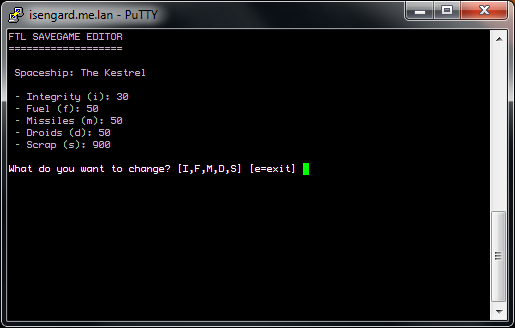
ftlsg – an FTL savegame editor. Currenty, you are limited to changing the basic (read: important) attributes. (note: the values shown in this screenshot differs from the hex dump screenshot)
When you have finished decoding all the bytes preceding the offsets you want to modify, you need to apply your programming skills and create code that parses the binary file, that allows you to make modifications and that allows you to save the modified savegame. I started on one such project, written in C, which I am currently hosting on GitHub. Check it out at: http://github.com/v3gard/ftlsg.
The savegame editor is currently limited to changing the 5 basic attributes; ship integrity, fuel, missiles, droids and scrap. However, as I have mapped out a rather large portion of the binary file, I plan on adding support for changing more attributes in future versions.
If you feel like giving reverse engineering a try, I can highly recommend getting started with the FTL savegames. Mapping out the attributes listed above is not too difficult, and it is always fun learning something new!
Last week I received my shining new Teensy 2.0 USB Development Board. During the weekend, I decided to spend some time getting to learn how to program it.
My Teensy 2.0 USB "Keyboard"
The Teensy is a complete USB-based microcontroller development system, capable of implementing several types of projects. The microcontroller on the Teensy 2.0 is an Atmel Mega32U4. All the programming is done via the USB port. There is also a project called Teensyduino, which allows you to write code for your Teensy board using the Arduino IDE.
The guys who produce the Teensy board have already made available easy to use libraries, that lets you implement a lot of functionality with little code. I decided to try out their USB Keyboard library, and make a small program that allowed me to make a programmable “keyboard”. These libraries are written in pure C, and can be compiled with gcc.
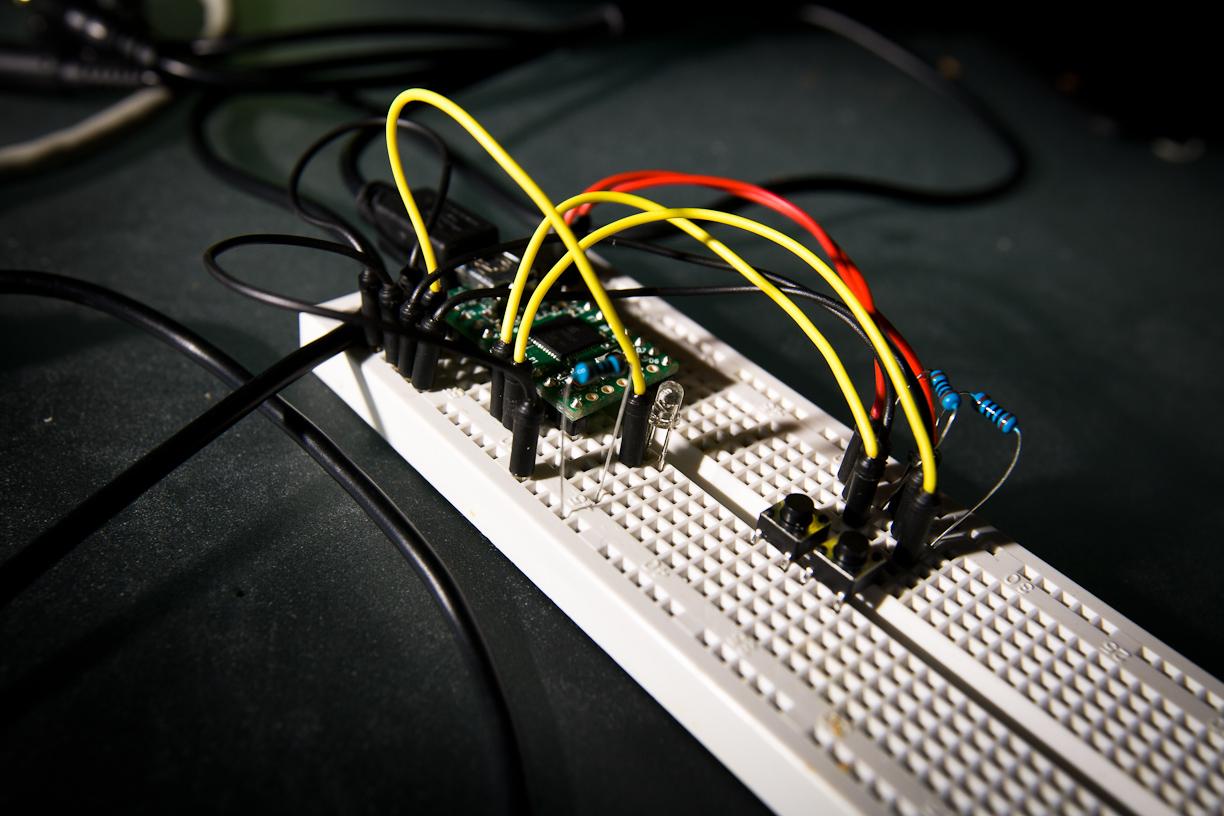
The small project I did allowed my to enter some text into any given application on my OS (which the Teensy was connected to), based on the state of a register in the micro-controller. In order to see the state of the register, I hooked it up to a small blue LED, as seen in the image on the right. You can also see two buttons there. The top-most button flicks the LED on and off (i.e. sets the register to 0x00 or 0xFF, respectively), and the bottom button transmits some hard-coded text into the OS.
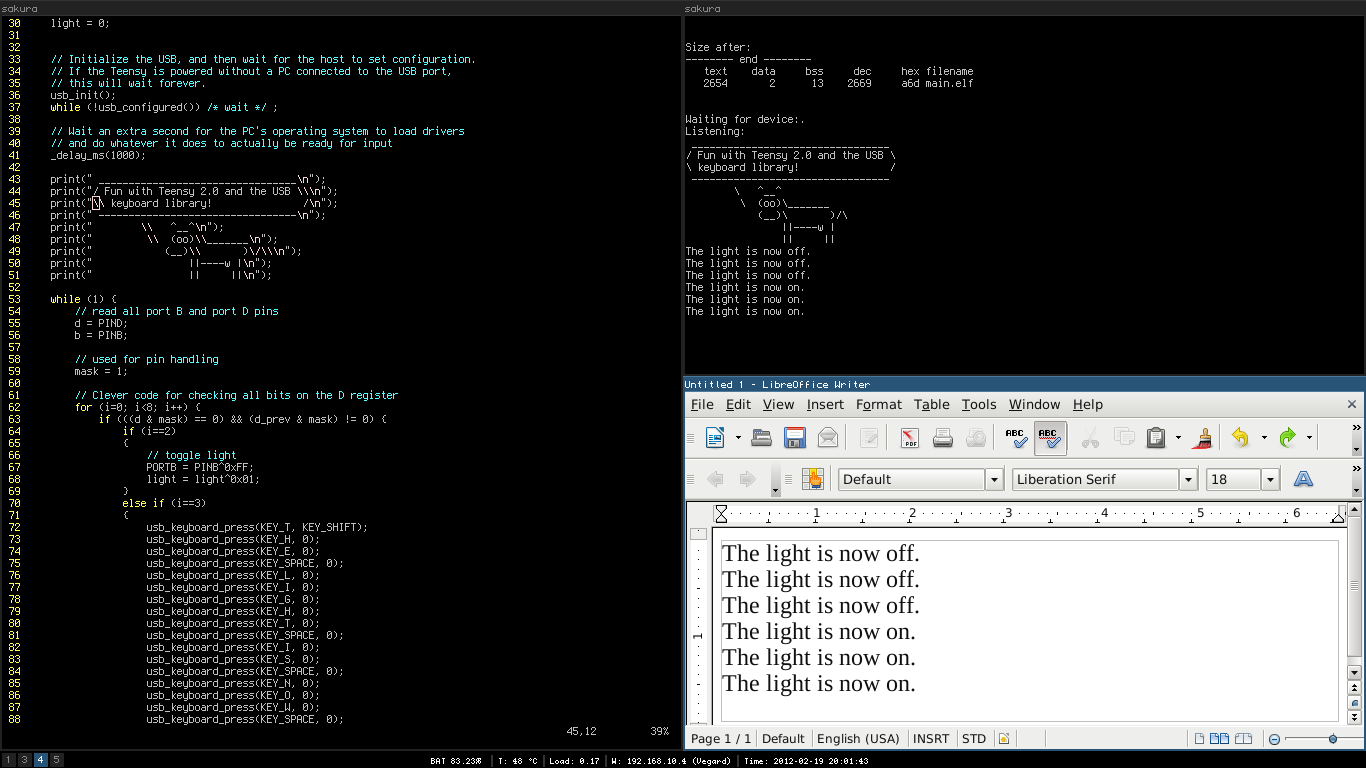
Screendump from my laptop while trying out the Teensy board
The buttons are powered by the +5V VCC pin on the Teensy and connected to ground via a 1K Ohm pull-down resistor. When the top button is pressed, a signal is sent to the D2 pin, and when the bottom button is pressed, a signal is sent to the D3 pin. The LED received power from the B1 pin, which is set when the D3 pin receives power.
When my program is compiled and uploaded to the Teensy, the OS kernel thinks that a USB keyboard is connected to the USB port and parses all input as keyboard events. So, when I press the button button, the text “The light is now off” is sent to the OS. If I first press the top button which switches on the LED, I can re-press the bottom button, and the text “The light is now on” is sent instead.
I wonder what I might be able to accomplish if I issued the command to open up a terminal and enter some code…:-)
I’ve been a customer with Thrust::VPS (aka Damn::VPS) for well over a year. Despite several minor issues I’ve had with them during this period, I continued my customer relationship with them due to their low prices and high bandwidth cap of 1TB each month. During the last couple of weeks however, I started experiencing a lot of problems on my VPS (Virtual Private Server). When I contacted their tech support to resolve these issues, the answers I received were vague and, in my honest opinion, very unprofessional. In fact, the customer treatment I received from them was appalling to be frank, and it ended up with me terminating the contract I had with them, and signing a contract with Linode instead. Here’s why.
Many TV channels allow you to stream their shows from a flash plugin on their website. How cool wouldn’t it be if you were able to download these streams to a file on your computer, or even show the streams in your favorite movie player, like mplayer? Let me tell you one thing. This is indeed possible.
How?
In order for the flash plugin to show the streams on your computer, they need to be freely available on the interwebz. If we use a protocol analyser like Wireshark to dig into the information sent between the flash plugin that runs in your browser, and the server that provides the video streams, we often see that it is transmitted using the Real Time Messaging Protocol (RTMP). If you happen to use a GNU/Linux based operating system, you’re in luck. There exists a toolkit called ‘rtmpdump’ that allows you to interact with a server offering RTMP streams. All you need to display these streams on your computer, are a few parameters that are exchanged between the aforementioned flash plugin and the RTMP server.
Example? Pretty please!?!
I will now show you an example of how this is done by grabbing an episode of the Norwegian TV show “Robinson-ekspedisjonen” that runs on TV3. This is the Norwegian version of Survivor. These episodes are freely available on http://tv3play.no if you want to display them in your browser. If you are like me, and you’d like a local copy on your computer, follow these steps:
3. Start the show in your browser. A commercial should now appear (that you should really watch in return of downloading the stream ;-)), and wait for the output that appears in the terminal. It should be something like:
4. Here follows a short description of the above output.
1. This is the URL of the flash plugin that runs in your browser. Since we are parsing raw network data, an extra “.” has been added in between the “swf” extension. This can safely be removed. The corresponding switch in rtmpdump is “-W”
2. This is the location where you access streams on the RTMP server. The corresponding switch in rtmpdump is “-r”.
3. Finally, this is the path to the TV show on the RTMP server. The corresponding switch in rtmpdump is “–playpath”.
5. We can now feed these variables to rtmpdump, and do whatever we want with the captured stream. Here are two examples:
6. Side note. If you want to watch/download the stream in higher quality, replace “flash_500” with “flash_900” in the playpath.
Is this legal?
The way I see it, we are not doing anything illegal here, as the video streams are made available from the publisher.
Sure, they are hidden such that “Average Joe” will have difficulties downloading them. Also, we do perform a neat hack when we extract the required variables from the network packet stream using a regular expression, but we still need to watch the commercial (or at least wait for it to finish) in order to get these variables.
As long as I (or you) keep the downloaded streams for yourself, and don’t distribute them directly, you are operating within any legal boundaries, at least if you live in Norway.